 IVGraph
A Zettelkasten, German for “slip box”, is a note-taking method in which every note holds one idea, written in your own words, with a permanent address and links to related notes. The links matter more than where a note is filed. Over time, the notes form a network you can follow to find arguments, examples and open questions for your next piece of writing. The sociologist Niklas Luhmann kept the best-known one, about 90,000 paper slips, and the same method works in Obsidian, in Notion or on index cards.
What Is a Zettelkasten?
Zettel means a slip of paper and Kasten means box. In English you will see “slip box” or simply “the Zettelkasten method”. The idea is older than any app: write small notes, give each one an address, and connect each new note to notes you already have.
Lecture notes, meeting notes and book summaries are organized around the source. A Zettelkasten is organized around ideas, and each idea sits next to the ideas it relates to. The authors of zettelkasten.de put its emphasis “on connection and not mere collection”.
| Typical notes | Zettelkasten | |
|---|---|---|
| Unit | A page per lecture, book or meeting | One idea per note |
| Wording | Copied quotes and highlights | Your own explanation, with the source |
| Organization | Folders by topic or project | Links between notes, plus a few entry points |
| Result | An archive | Material for writing and new questions |
The method suits people who turn reading into writing: researchers, students working on a thesis, writers and analysts. If you mainly need a place for tasks and project files, read who should skip it first.
Where It Comes From: Niklas Luhmann’s Slip Box
Scholars kept notes on loose slips for centuries; Wikipedia’s history of the Zettelkasten goes back to the 16th-century scholar Conrad Gessner. The modern method is tied to Niklas Luhmann (1927–1998), a German sociologist known for his social systems theory.
Luhmann built his Zettelkasten from the early 1950s to the mid-1990s. According to the Niklas Luhmann Archive at Bielefeld University, it holds about 90,000 slips. He credited the box with much of his output (Wikipedia counts about 50 books and 550 articles), and in a 1981 essay, “Communicating with Slip Boxes”, he wrote about it as a partner he worked with rather than a place to store notes.
Three features of his system still shape the method:
- Fixed addresses. A thought that continued slip
1became1a, a comment on1abecame1a1, and the next step after1abecame1b. New notes grew between existing ones without renumbering anything. - References between slips. Besides the sequence, any slip could point to distant slips by number. That is how separate lines of thought met.
- A register of entry points. His keyword index listed only a few central slips per keyword. As the zettelkasten.de introduction points out, the slips themselves were not tagged.
1       Exports are a trust problem
1a      continues 1: a visible sync status removes the need
1a1     comment on 1a: what "visible" means on a phone
1b      next step after 1a: where the status should live
2       a new, unrelated line of thought
The slips were digitized and published online in 2019; you can browse them in the Niklas Luhmann Archive. In English, the method spread through Sönke Ahrens’s book How to Take Smart Notes, which popularized the note types most guides use today.
The Core Principles of the Zettelkasten Method
One idea per note
An atomic note holds one idea that makes sense without opening anything else. Its title states the idea, not the topic: “Exports signal missing trust” is a note; “Data exports” is a folder name. Treat this as a direction, not a word limit. Some ideas need a paragraph, some a page.
Your own words, with the source
A permanent note explains the idea as you understand it. Writing it is how you find out whether you understood the source. Quotes can sit inside, with a reference to where they came from.
A permanent address
Each note needs an identifier that never changes, so links keep working. On paper, that was Luhmann’s numbering. In an app, a timestamp such as 202610121405, an automatic number or a unique title all work.
Links that say why
Link every new note to at least one existing note and write a sentence on why: does it support the other note, contradict it, extend it or give an example? A bare “see also” tells you nothing a year later.
Entry points and structure notes
A structure note, also called a hub note, an index note or, among Obsidian users, a map of content (MOC), lists the notes on one subject in a meaningful order, with a line about each. You write it once a cluster of notes exists, to summarize what grew from the bottom up.
Note types
| Note type | What it holds | How long it lives |
|---|---|---|
| Fleeting | A quick capture: a thought, a phrase, a question | Until you process it, usually within days |
| Literature | What a source says, briefly, with the reference | Kept with the source |
| Permanent | One idea in your own words, linked to other notes | Permanently |
| Structure | An ordered list of notes on one subject | Grows with the subject |
The first three follow Ahrens’s split between notes that are temporary and notes that stay. Structure notes are there for navigation.
Why the Links Are the Method
Put the principles together and you get a network: notes are nodes, links are edges. Luhmann’s slip box was a graph long before anyone drew it as one. You rarely find a valuable note by remembering where it is. You find it by starting from a related note and following links, and on the way you pass notes you had forgotten. Those unplanned meetings between old and new notes are where new combinations come from.
Links do different jobs, and it helps to know which one you are making:
| Link type | What it says | Example |
|---|---|---|
| Sequence | This note continues that one | Note 1a continues note 1 |
| Cross-reference | These ideas meet, for a reason written in the note | “Same cause as the support-ticket note” |
| Structure | This note belongs to this subject, in this position | A structure note listing its member notes |
| Source | This idea comes from here | A permanent note pointing to its literature note |
This is the same model as a knowledge graph, with one difference. In a knowledge graph, a relationship has a name such as “wrote” or “depends on”. In a Zettelkasten, the relationship is a sentence inside the note. How to read the shape of that network is covered later in this guide.
How to Start: The Zettelkasten Workflow, Step by Step
The workflow is the same in any tool. Start with one source you are reading anyway.
- Capture fleeting notes in one inbox as thoughts come. Do not organize them yet.
- Take literature notes while you read: the few points that matter to you, with the reference.
- Write permanent notes a few times a week. For each idea worth keeping, write a note in your own words that someone else could understand.
- Give it an address and a title that states the idea.
- Link it to at least one existing note and write why. Search for related terms before you decide it is unrelated to everything.
- Add an entry point. Link a new subject from your index. When a subject reaches a handful of notes, write its structure note.
- Clear the fleeting note. Its job is done once the idea lives in a permanent note.
- Write from the network. For an article, a report or a thesis chapter, start from a cluster or a structure note instead of a blank page. The order of the notes is your first outline.
Expect the box to feel empty for the first weeks. Links become useful when there is something to link to, so the early goal is the habit: a few good permanent notes a week, each one connected.
A Zettelkasten Example: From One Source to a Cluster
Here is a small, fictional example from a product team’s research notes. The IDs are timestamps, and the links use Obsidian’s [[wikilink]] syntax; in Notion, they would be @-mentions.
The literature note
# Interview: Bluleaf Studio, 2026-10-12
Source: customer interview, 45 minutes

- They export the database to a spreadsheet every Friday,
  "to be sure nothing got lost".
- They stopped once the app showed the last sync time.
Two permanent notes
# 202610121405 Exports signal missing trust

Regular exports are often a workaround for missing trust,
not a need for the spreadsheet itself. Bluleaf exported
every Friday and stopped once the last sync time was visible.

Source: [[Interview: Bluleaf Studio, 2026-10-12]]

Links
- [[202610121420 Visible status beats support answers]]
  The same fix, seen from the support side.
- [[202609300910 Power users want raw exports]]
  Seems to contradict this note. Could those users
  see a sync status?
# 202610121420 Visible status beats support answers
A user who can see the state of the system does not
need to ask. Each status shown in the interface removes
one kind of question.
Links
- [[202610121405 Exports signal missing trust]]
The user-side version of the same idea.The structure note
# Trust in data sync (structure note)

1. [[202610121405 Exports signal missing trust]]
   - [[202610121420 Visible status beats support answers]]
2. [[202609300910 Power users want raw exports]]
   The counter-argument.

Open question: does the same pattern hold for calendar sync?
There is no folder called “Exports” and no tag system. Three permanent notes and one structure note already hold an argument, a counter-argument and an open question: the outline of a short memo. The link to the contradiction is the most useful one, because the next interview question comes from it.
How to Set Up a Zettelkasten in Obsidian
Obsidian fits the method closely: notes are Markdown files in a local folder called a vault, links are [[wikilinks]], and backlinks and a graph view are built in. Core plugins are enough.
- Create three folders:
Inboxfor fleeting notes,Sourcesfor literature notes andNotesfor everything else. Folders describe a note’s stage, not its topic; topics come from links. - Pick an ID style. The core plugin Unique note creator names new notes with a timestamp, such as
202401010945; run the Create new unique note command or use its ribbon button, then add a short title after the timestamp if you like. Plain titles also work as IDs, because Obsidian updates internal links when you rename a file (Settings → Files and links → Automatically update internal links). - Make a template. Turn on the Templates core plugin, set its Template folder location and save a template like the one below. Insert it with Templates: Insert template, or select it in Unique note creator’s Template file location setting so every new note starts from it.
---
type: permanent
created: {{date}} {{time}}
source:
---
# {{title}}

One idea, in your own words.

## Links
- [[ ]]: why these notes belong together- Link as you write. Type
[[to link a note,[[Note#Heading]]to link a section and[[Note|text]]to change the displayed text. You can link to a note that does not exist yet; clicking the link creates it, which marks an idea you still need to write. - Use the Backlinks panel. Linked mentions lists notes that link to the current one. Unlinked mentions lists notes that contain its name as plain text: each is a link you may have missed. The Backlink in document option shows backlinks at the bottom of every note.
- Check each new note in the local graph. Run the Open local graph command: if a fresh note has no neighbors, it is not part of the Zettelkasten yet. Our Obsidian graph view guide covers filters, groups and the other settings.
Community plugins and starter vaults exist for almost every variation of the method, but none is required. Add one when you can name the problem it solves.
How to Set Up a Zettelkasten in Notion
Notion has the parts: databases, @-mentions with automatic backlinks, relation properties and templates. The key decision is to keep all notes in one database instead of a tree of nested pages. A page tree is the folder logic the method avoids; a database keeps every note at the same level and lets you filter by type.
Create a full-page database called “Zettelkasten” with these properties:
| Property | Type | What it is for |
|---|---|---|
| Name | Title | The idea, stated as a claim |
| Type | Select: Fleeting, Literature, Permanent, Structure | Separates the inbox from the notes that stay |
| ID | ID | A number Notion assigns automatically; you cannot change it by hand |
| Source | URL, or a relation to a Sources database | Where the idea comes from |
| Links to / Linked from | Relation to the same database, with Two-way relation on | Links you can filter and count |
- Set up the self-relation. Add a relation property that points to the same database and turn on Two-way relation. Notion creates two properties, one per direction; name them “Links to” and “Linked from”.
- Add templates. Click the arrow next to New, choose + New template and make one per note type, with Type pre-filled. Do not pre-fill the relation, or every new note will link to the same page.
- Link inside sentences. Type
@or[[and pick a note. Each mention creates a backlink on the target page, and the sentence around it keeps the reason next to the link. - Add important links to the relation as well. Filters see relation properties, not mentions in the text, so a view filtered to “Links to is empty” and “Linked from is empty” lists your orphans. If recording links twice is too much friction, keep mentions only and find orphans in a graph, as shown below.
- Create a view for each stage: Inbox (Type is Fleeting, newest first), Permanent and Structure.
If you would rather start from a ready-made setup, Notion’s template gallery has a Zettelkasten category. Check that a template keeps notes in one database and links them to each other, not only to tags.
Two limits matter here. Notion shows backlinks one page at a time, so there is no place to see how all your notes connect. And Notion has no built-in graph view, which matters more for a Zettelkasten than for most setups, because the network is the point. For relations in depth, see Notion relations and rollups.
Obsidian or Notion? Both can hold a Zettelkasten. Obsidian has less friction for linking and a graph built in, which suits notes mainly for your own thinking and writing. Notion makes sense when your projects and team documents already live there, so you do not keep two systems in sync. Our Notion vs Obsidian comparison covers storage, collaboration, AI and pricing.
See Your Zettelkasten as a Graph
A Zettelkasten is a network, so the most direct way to check its health is to look at it as one. A list tells you how many notes you have. A graph shows which ideas carry the weight, which subjects are growing and which notes never joined the conversation.
| What you see | What it usually means | What to do |
|---|---|---|
| A dot with no lines | An orphan: a note you never placed | Link it to one note and say why, or archive it |
| A large node with many lines | A central idea or a structure note | Check that it still holds one idea; turn a crowded hub into a structure note |
| A dense cluster | A subject that grew from the bottom up | Write its structure note, or the draft it is ready for |
| A node between two clusters | A bridge between subjects | Read it closely: cross-topic ideas are what the method is for |
In Obsidian
Use the local graph at a depth of one or two for the note you are writing, and the global graph with Orphans shown for a weekly review. A color group based on a search term such as path:Sources separates literature notes from permanent notes. The graph view guide explains each setting.
In Notion
Notion has no graph view, and that is the gap IVGraph fills. You sign in with Notion, IVGraph reads the workspace with read-only access and draws pages as nodes, with @-mentions, backlinks, relation properties and parent pages as links, in an interactive 3D graph. In a Zettelkasten database, each note becomes a node, structure notes show up as hubs, and notes that nothing links to drift to the edges.

Select a note, and its card lists every connection, grouped by database, together with Similar nodes: pages whose text is close to this one. In a Zettelkasten, that list is a set of link candidates. Open both notes, and if you can write a sentence about why they belong together, add the link in Notion.
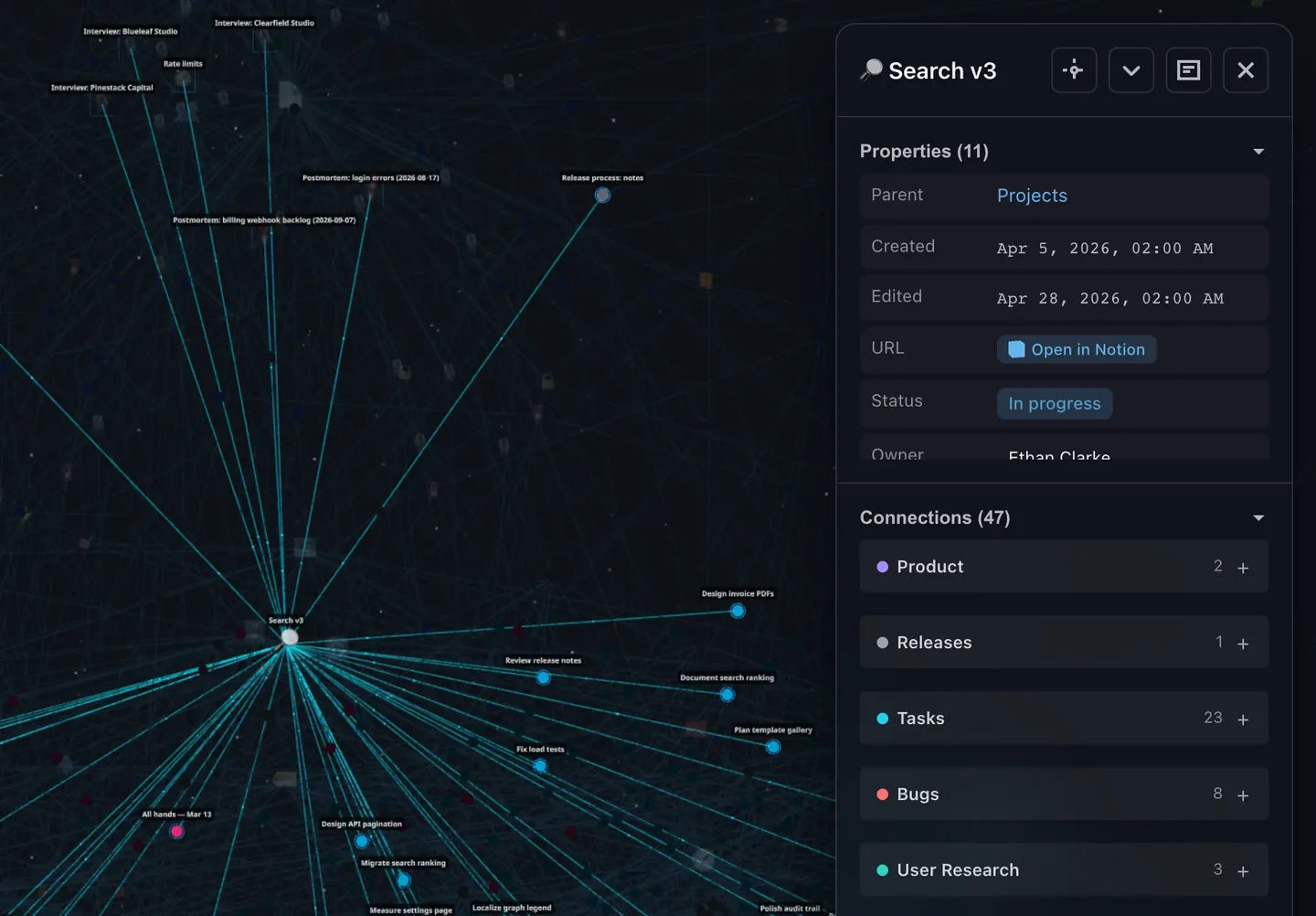
A short weekly review keeps the network healthy: link or archive each orphan, check whether the largest hub should become a structure note, and write a structure note for one cluster that lacks it.
Zettelkasten vs PARA, Second Brain and LLM Wiki
These terms often appear together, but they answer different questions.
| Approach | Organizes by | Good for |
|---|---|---|
| Zettelkasten | Links between single ideas | Thinking and writing from what you read |
| PARA | How actionable material is: Projects, Areas, Resources, Archive | Finding project material fast |
| Second brain | Varies: it is an umbrella term for a personal knowledge system | Capturing and reusing what you learn |
| LLM wiki | Topic pages that a language model writes and updates from your sources | Keeping a knowledge base current with little manual upkeep |
They combine well. A common setup uses PARA for projects and a Zettelkasten for ideas; our guide to what a second brain is covers CODE and PARA, and the Notion second brain blueprint borrows from both. An LLM wiki makes the opposite trade-off: the model does the writing, so you save time but skip the step where a Zettelkasten builds your understanding. If you use AI with your notes, let it suggest links and find related notes, and keep writing permanent notes yourself. For an Obsidian vault, see how to connect Claude to Obsidian; for a Notion setup with Claude, see the Claude Code second brain guide.
Common Mistakes, and Who Should Skip the Method
- Collecting instead of writing. Highlights and copied quotes feel productive, but they make an archive. Write a permanent note only when you can explain the idea yourself.
- Notes that are too big or too small. A page of lecture notes is not atomic, and a one-line fragment cannot be understood later. Test each note: does it make sense alone, and does the title state the claim?
- Links without a reason. A list of “related” links is hard to use a year later. Write one sentence per link.
- Building the system before the notes. Folder trees, tag lists and ID schemes designed in advance usually get rebuilt. Write your first few dozen notes, then add structure where you need it.
- Tags instead of links. A tag groups notes but does not say how they relate. Luhmann’s register pointed to entry points; it was not a tag system.
- Never reviewing. Without a regular look at orphans and hubs, unlinked notes pile up and the box turns back into an archive.
Who should skip it? The method takes time and pays off when you regularly write from what you read. If you mostly store reference material and manage projects, a PARA-style structure or a project database will serve you better. An Obsidian forum thread makes that case, arguing the method was built for one scholar’s research. You can still borrow parts of it: atomic notes and links with reasons improve notes in any app.
FAQ
What is the Zettelkasten method in simple terms?
It is a way of taking notes in which each note holds one idea in your own words, has a permanent address and links to related notes, with a sentence on why they belong together. Over time, the notes form a network you can follow when you write.
Do I need Luhmann’s numbering system?
No. Numbers such as 1, 1a and 1a1 gave Luhmann’s paper slips a fixed place. In an app, any identifier that never changes works: a timestamp, an automatic number or a unique title.
Is Obsidian or Notion better for a Zettelkasten?
Obsidian fits if you write mostly alone and want local Markdown files, unlinked mentions and a built-in graph view. Notion fits if your notes live next to projects and team documents; it has @-mentions, backlinks and relations, but no built-in graph view.
What is the difference between a Zettelkasten and a second brain?
A second brain is a general term for a personal knowledge system. A Zettelkasten is one specific method within it, built on small linked notes for thinking and writing. Many people combine it with PARA, which sorts material by how actionable it is.
How can I see my Zettelkasten as a graph?
In Obsidian, use the built-in graph view. Notion has no graph view; IVGraph draws Notion pages, mentions, backlinks and relations as an interactive 3D graph and is free up to 500 nodes at the time of writing.