 IVGraph
Choose Notion if you want notes, relational databases and shared work in one cloud workspace. Choose Obsidian if you want local Markdown files, offline note-taking and a built-in graph of your ideas. If you already use Notion and only envy Obsidian’s graph view, that is a smaller problem than switching your entire knowledge system.
The short answer: pick around your daily work
The useful Notion vs Obsidian question is not “Which app can do more?” It is “Which app makes my most frequent work straightforward?”
- Pick Notion for shared documentation, project databases, comments, permissions and AI working with workspace content.
- Pick Obsidian for private research, connected writing, local files and a note collection you can manage independently of a cloud workspace.
- Keep Notion and add a graph if its databases and collaboration already suit you. A missing visualization does not necessarily justify migration.
- Use both if personal thinking and shared execution are genuinely separate workflows—not two copies of the same system.
Neither choice prevents serious thinking or organized work. The difference is what you get directly and what you must assemble.
The core difference: a workspace versus a folder of files
Notion’s basic environment is a cloud workspace containing pages and databases. Those databases support relations, rollups and views; the surrounding workspace supports collaboration and permissions.
Obsidian’s basic environment is a vault: a local folder containing plain Markdown files. Your notes are files on your device, rather than content whose primary home is a hosted workspace.
That distinction matters more than whether you prefer one editor. In Obsidian, keeping the underlying text means keeping the files. In Notion, the useful system includes not just text but database structure, views and the way people work together.
Offline and mobile: separate access from syncing
At the time of writing, Slite’s comparison describes Obsidian as fully available offline and Notion as having limited offline support. Older discussions saying Notion has no offline support conflict with that newer description. The useful distinction is local-first versus cloud-first, not an absolute online/offline label.
For cross-device use, Notion automatically syncs through its cloud workspace. Obsidian requires a syncing arrangement: its paid Sync service or third-party tools.
On mobile, test a real sequence: capture a thought, open an older note without a connection, follow a link, then find the edit on your other device. For Notion, include the database pages you depend on. The available offline description does not establish that every workspace operation behaves identically offline.
Notion vs Obsidian at a glance
| Area | Notion | Obsidian |
|---|---|---|
| Storage | Cloud workspace of pages and databases | Local Markdown files in a vault |
| Offline | Limited offline support; cloud-first | Local notes available offline |
| Links and backlinks | Page mentions, backlinks and database relations | [[wikilinks]] and backlinks |
| Structured information | Built-in databases with relations, rollups and views | File-centered notes; structured workflows depend on the setup |
| Graph view | No built-in graph; third-party options | Built-in global and local graphs |
| Collaboration | Real-time editing, comments and permissions | Shared-vault and third-party collaboration options |
| AI and agents | Notion AI and an official hosted MCP server | AI through community plugins; no native AI in the cited comparison |
| Extensibility | Integrations and a public API | Core and community plugins |
| Mobile and cross-device | Cloud-synced workspace | Local-first; arrange syncing between devices |
| Pricing model | Free plan and paid per-user plans | Free core use; optional paid services |
The table is a starting point. “Supports collaboration” does not mean the collaboration models are interchangeable, just as “supports links” does not mean navigating those links feels the same.
Linking and backlinks in practice
Imagine you are researching distributed systems. You have notes called “Caching,” “Consistency” and “Incident review.” You want to connect an incident to the concepts that explain it.
In Obsidian, write [[Caching]] inside the incident note. The link gives you a route to that concept; backlinks provide the reverse route to notes that reference it.
In Notion, mention the Caching page inside the incident page. Notion shows backlinks on pages, so you can follow references in both directions there too. Our Notion backlinks guide covers that page-to-page workflow.
A database relation solves a slightly different problem. Rather than mentioning a concept in prose, you might give each incident a “Related systems” relation. That connection becomes part of the database structure.
Use a mention when the connection belongs in a sentence. Use a relation when you want a consistent field across records. Obsidian’s direct note links suit associative writing; Notion lets you combine prose links with explicit database relationships.
Whichever you choose, write why the connection matters. “This incident illustrates a stale-cache problem” is more useful than an unexplained link dropped at the bottom of a page.
Databases versus file-centered notes
Suppose you keep a reading collection. Each item has an author, reading status, topic and connection to a project.
In Notion, that is naturally a database. Different views let you approach the same collection differently, while relations connect reading notes to projects. Rollups can summarize related information. The structure is part of the workspace rather than just something described in the text.
For a concrete starting point, use one reading database and one projects database, connected with Notion database relations. Add structure only when it answers a question you actually ask.
In Obsidian, the starting point is the note itself. You can write a response to a paper, connect it to another argument and keep developing the thought without first designing a database.
This is not “Notion has structure; Obsidian has none.” It is a difference in emphasis. If your main question is “Which sources support this idea?”, linked notes may be enough. If it is “Which unread sources belong to active projects?”, Notion’s database model is a direct fit.
A second brain in Notion makes sense when knowledge and project management need to live together. Obsidian makes sense when the durable output is primarily a growing collection of written ideas.
The graph view question
Obsidian has global and local graphs built in
Obsidian provides a global graph of the vault and a local graph around an individual note. You do not need a separate visualization service to see linked notes as nodes and edges.
The global graph answers “What does this collection connect to?” The local graph is often the more practical writing aid: “What is connected to the note I am working on?”
For the incident example, start with the incident note and inspect its neighborhood. Can you reach the relevant system, the underlying concept and an earlier incident? That is a concrete navigation task, not just an attractive overview.
Notion has connections, but no built-in graph
The short answer to does Notion have a graph view is no—not natively. It already stores page mentions, backlinks and database relations, but it does not present them as a built-in workspace graph.
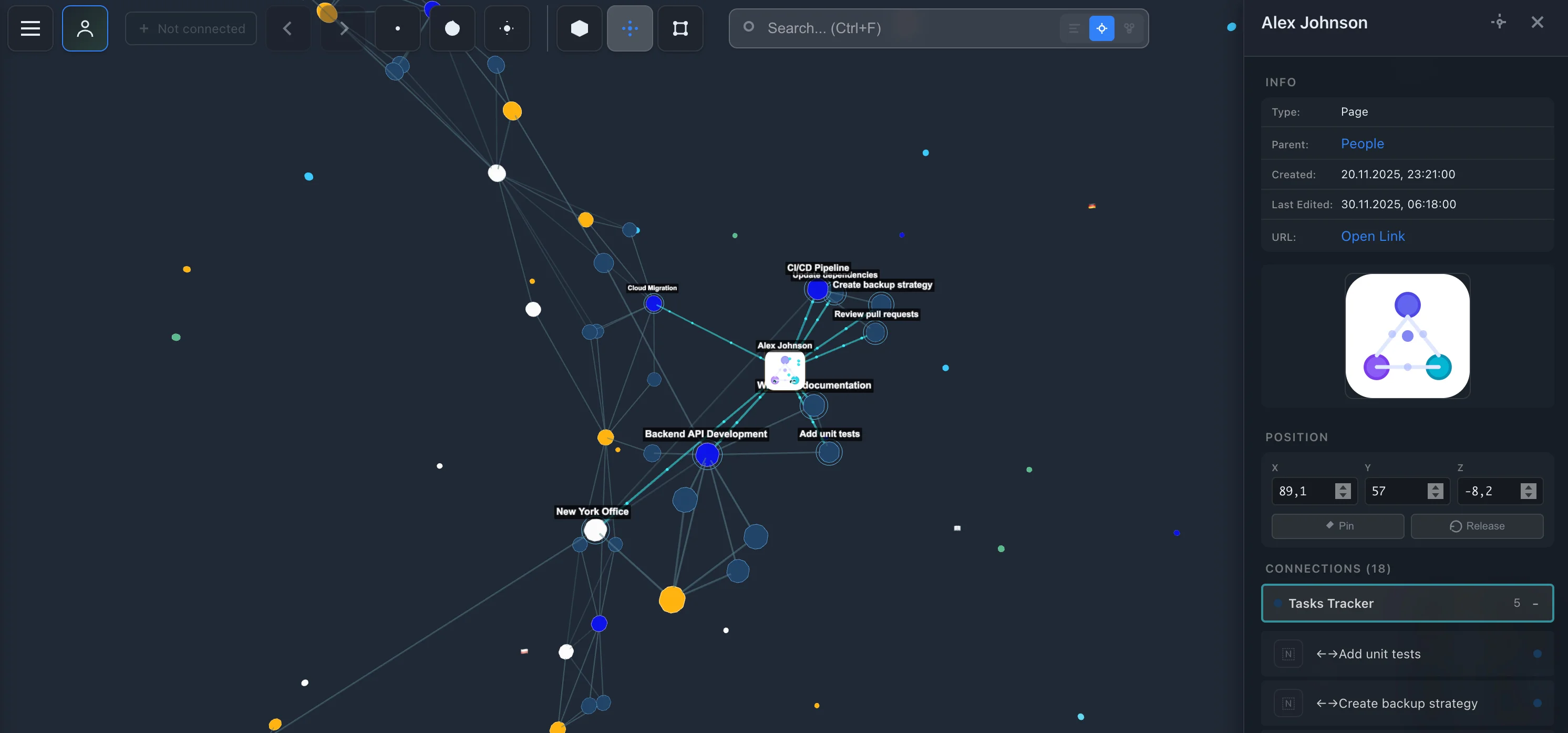
IVGraph adds that visualization: connect through Notion sign-in, and it reads the workspace in read-only mode to draw pages, backlinks/mentions and database relations as an interactive 3D graph. At the time of writing, it is free up to 500 nodes.
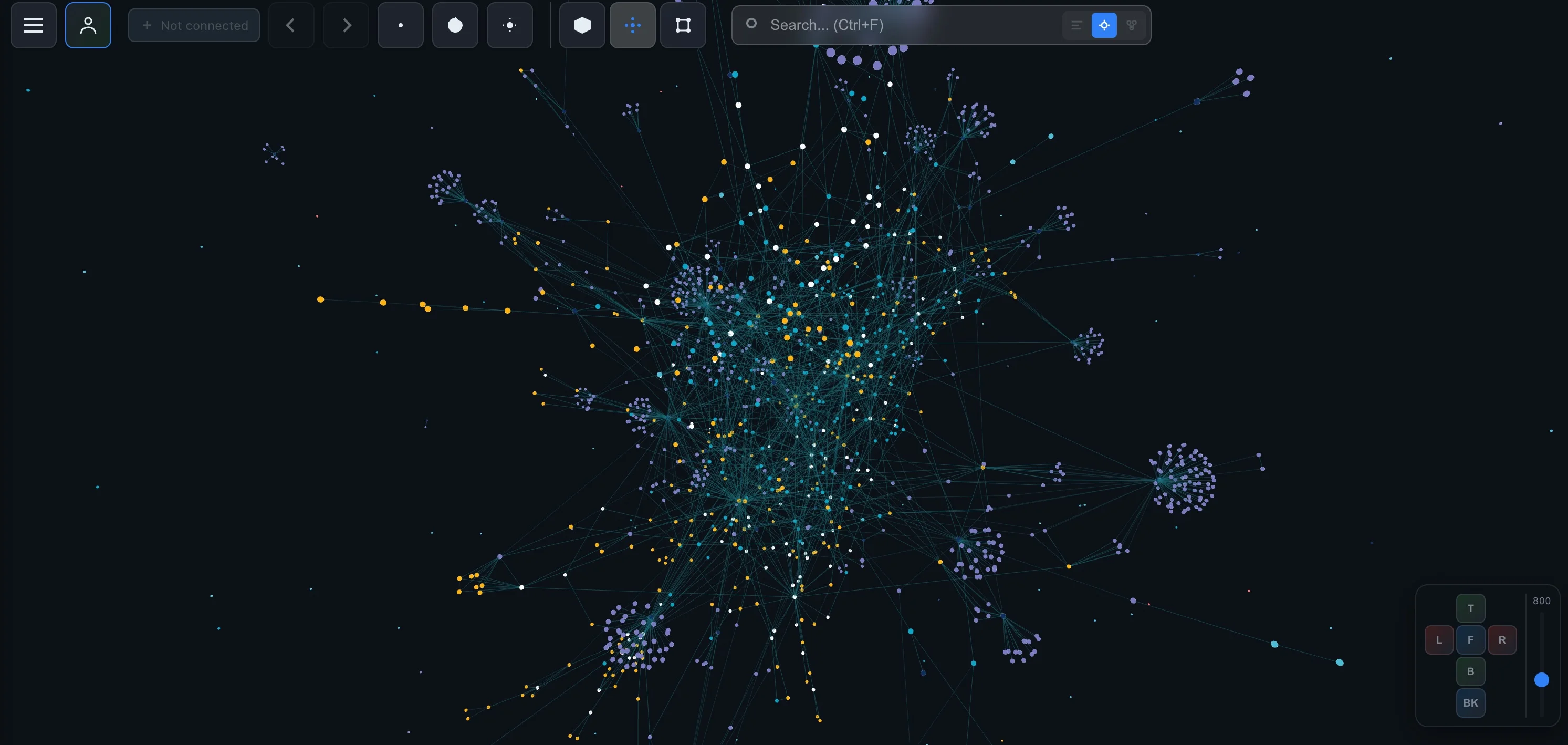
This addresses the missing graph, not the storage model. Your workspace remains in Notion; a third-party graph does not turn its pages into a local Markdown vault or reproduce Obsidian’s entire environment.
Collaboration, AI and agents
For shared work, Notion is the straightforward default
Notion combines real-time collaboration, comments and permissions with pages and databases. If a project needs shared notes, discussion and structured tracking, those capabilities belong to the same workspace.
Obsidian is not strictly single-user. At the time of writing, Slite lists shared vaults through Sync and collaboration plugins such as Relay and Peerdraft. Its table groups these under real-time collaboration; that does not establish that shared-vault syncing alone is equivalent to Notion’s co-editing.
For a team, define the actual requirement: distributing notes, editing together, discussing a paragraph or controlling access. Do not treat those as one checkbox.
Integrated AI versus a plugin-based approach
Notion has Notion AI and an official hosted MCP server that lets AI applications—including Claude, ChatGPT and Cursor—work with a workspace. Our Notion MCP guide explains that connection.
Obsidian’s AI approach is community-plugin based in the cited comparison, rather than a native assistant. That gives you a separate configuration decision: which plugin and provider should participate in your notes workflow?
Local files and AI privacy are separate questions. Before connecting an AI service, decide which notes it should access and whether content may leave the device. Apply the same discipline when granting an AI app access to a cloud workspace.
Plugins and integrations add different kinds of flexibility
At the time of writing, Slite reports 2,000+ Obsidian community plugins and 70+ Notion native integrations, alongside Notion’s public API. A December 2025 Obsidian forum discussion instead reports almost 2,700 plugins. These are differently dated counts, not a precise live inventory.
The practical trade-off: integrations connect your workspace to other systems; plugins let you shape the note-taking environment. Start with a missing workflow, not a shopping list of extensions.
Pricing: compare the services you actually need
At the time of writing, Slite’s pricing comparison lists:
- Notion Free: a free plan.
- Notion Plus: $10 per user per month.
- Notion Business: $20 per user per month, including AI.
- Notion Enterprise: custom pricing, with AI included.
- Obsidian Sync: $4 per month with annual billing; elsewhere the comparison describes it as $4–5 per month.
- Obsidian Publish: $8 per month with annual billing, separate from Sync.
The same source says Notion’s separate AI add-on was removed in May 2025, with AI bundled into Business and Enterprise.
One licensing note: Obsidian is free for work too. Its pricing page lists a commercial license at $50 per user per year, but says organizations are not required to buy it — it is a way to support development. Sync is $4 per month billed annually ($5 monthly), Publish $8 per site per month billed annually ($10 monthly).
For personal local notes, Obsidian can cost nothing. For a multi-device workflow or published notes, optional services change the comparison. For Notion, consider the plan your collaboration and AI workflow needs—not just whether a free account exists.
Can you use both? Yes—with a boundary
A sensible split is personal research and drafts in Obsidian, shared project records and decisions in Notion. An unhelpful split is maintaining the same project tracker in both and wondering which copy is current.
If you are switching, treat it as a workflow migration, not merely moving text. Notion’s Markdown export is noted in this Obsidian community comparison, but a text export does not demonstrate that your relational workflow will transfer intact.
- Choose a representative sample. Include ordinary notes, linked notes, attachments and database-backed pages.
- Keep the original. Work on a copy while testing the destination.
- Inspect connections. Follow links and confirm that the expected files and pages are reachable.
- Rebuild one real task. Find a source, update a project or prepare a meeting using the new setup.
- Assign one authoritative home. If both apps remain, decide where each kind of information gets updated.
Do this before moving the whole archive. A readable note is necessary; a usable daily workflow is the actual acceptance test.
The verdict by use case
- Students: choose Notion when courses, assignments and group projects need a shared structure. Choose Obsidian when the priority is connecting concepts and keeping study notes available locally.
- Solo knowledge workers and Zettelkasten users: lean toward Obsidian for idea-centered writing and linked notes. Lean toward Notion when those notes must also support structured project and reference databases.
- Teams: choose Notion by default for collaborative pages, comments, permissions and databases. Consider Obsidian when a file-centered workflow is a deliberate team requirement.
- Developers: choose Obsidian for local Markdown and a customizable personal environment. Choose Notion for shared documentation, database-backed work and official MCP access from AI tools.
My recommendation: choose around storage, structure and collaboration first. Then consider the graph. Moving your entire knowledge system to solve a visualization gap is unnecessary if the underlying workspace already fits.
FAQ
Which is better, Notion or Obsidian?
Notion is the stronger default for shared work, relational databases and integrated AI. Obsidian is the stronger default for personal Markdown notes, local storage and built-in graph navigation. Choose around your main workflow rather than the longest feature list.
Does Notion have a graph view like Obsidian?
Notion has backlinks, page mentions and database relations, but no built-in graph view. A third-party visualization can turn those existing connections into a graph without requiring you to migrate your notes.
Can Notion and Obsidian work offline?
Obsidian stores notes locally and supports offline note-taking. Notion has limited offline support but remains cloud-first. If offline access is essential, test the pages, databases and mobile workflow you actually depend on before committing.
Is Obsidian cheaper than Notion?
For local personal notes, Obsidian can cost nothing. At the time of writing, the cited comparison lists optional Sync at $4 per month and Publish at $8 per month, both billed annually. Notion has a free plan, with Plus listed at $10 per user per month and Business at $20 per user per month, including AI.
Should I use Notion or Obsidian for a second brain?
Use Obsidian if your second brain centers on writing and connecting ideas in local files. Use Notion if it also needs project tracking, structured reference databases and shared work. Using both can work if each type of information has one authoritative home.