 IVGraph

A Notion dashboard is the page you open first: today’s tasks, this week’s deadlines, the pages you use every day and a few numbers that show how things are going. Since March 2026, Notion has two ways to build one. The new Dashboard view arranges database views in a fixed grid, but only on the Business and Enterprise plans. A dashboard page made of columns, linked views and embeds works on every plan, Free included. This guide covers both step by step, then eight layouts to copy and the widgets that fill the gaps databases leave.
Most personal dashboards are pages, not views: they mix lists from databases with links, notes, a calendar and a clock. The Dashboard view suits teams that track numbers from one or two databases and want a layout nobody breaks by accident. If you can’t decide, build the page first. It costs nothing, and the filters you work out for it are the same ones a Dashboard view needs later.
Dashboard view or dashboard page?
Both put everything that matters on one screen. They differ in what they can hold, how they’re edited and which plan you need.
| Dashboard view | Dashboard page | |
|---|---|---|
| What it is | A view of a database that shows other views side by side, in rows | A regular page with columns, linked database views, text and embeds |
| Plans | Business and Enterprise | Every plan, Free included |
| What it can show | Database views only: table, board, list, gallery, calendar, timeline, map, chart, feed | Anything a page holds: text, callouts, links, buttons, images, linked views, embeds |
| Layout | Up to 4 widgets in a row and 12 in total; widths and row heights you drag | Columns you drag; each block takes the height it needs |
| Filters | Per widget, plus global filters across widgets that share a property | Per linked view |
| Editing | Separate Edit and View modes, so the layout is hard to break | Anyone who can edit the page can move a block by accident |
| Widgets from other sites | No | Yes, with /embed |
Notion’s own help draws the same line: the Dashboard view for a stable layout you reuse, linked views in columns when you want text, images and callouts around your data. You can also combine them: put a Dashboard view on a page and add embeds above it.
One word causes confusion here. Notion calls the boxes inside a Dashboard view widgets, and each of them is a database view. The widgets most guides mean, such as a clock, a countdown or a habit tracker, are small web pages you add with /embed. A Dashboard view can’t hold those; a page can.
How to build a dashboard page on any plan
This works on Free, Plus, Business and Enterprise, and a first version takes about half an hour. The result can look like this:
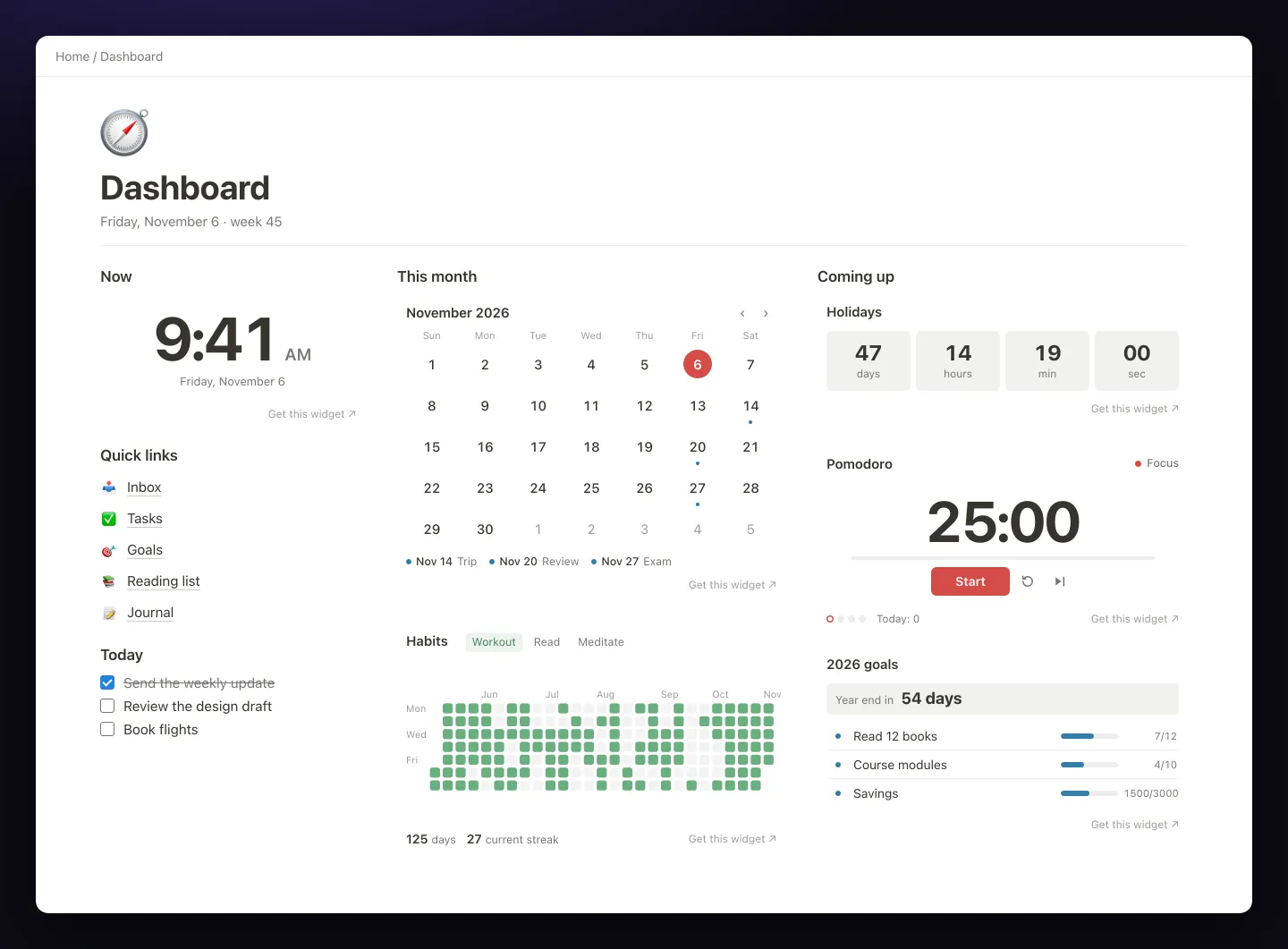
/embed. The small “Get this widget” links are how the free versions look.1. Create the page and give it room
Create a new page in your sidebar and call it Home or Dashboard. Give it an icon, so you can spot it in the sidebar and in search. Then open ••• at the top right, choose Appearance & layout and turn on Full width: three columns need the extra space. Skip the cover for now. On a dashboard, it pushes your lists further down the screen.
2. Split it into columns
Type a heading for each area, such as Now, This week and Links. Drag a heading by its ⋮⋮ handle next to another block until a blue vertical guide appears, then drop it to create a column. Drag the gray guide between two columns to change their widths. Two columns are easier to keep tidy; three suit a wide screen.
Phones don’t show columns: in the Notion app, the right column moves under the left one. Put what you need most on the left.
3. Show your lists as linked views
A dashboard shouldn’t hold the data itself. Keep tasks, projects and notes in their own databases and show them here as linked views: type /linked, choose the linked view option and pick the database. Each linked view has its own filters, sorts and layout, and changing them doesn’t touch the original database or its other views.
Then filter every view down to what you act on:
- Today: tasks where Status is not Done and Due is on or before today, so overdue tasks stay in sight.
- This week: deadlines that fall within the next seven days, sorted by date.
- Waiting: projects where Status is Blocked or On hold.
- New notes: notes sorted by Created time, newest first.
Choose the layout that reads fastest in a narrow column: a list, or a table with two or three properties instead of ten. In the view’s layout settings, a load limit of 10 keeps a long list from pushing everything else down.
4. Add quick links and buttons
Quick links are the part of a dashboard people use most: your inbox, the reading list, the team wiki, the weekly review. Type @ and a page name to add a link inside a line of text, or /link to page for a link on its own line, with the page’s icon.
Buttons save clicks. Type /button and choose what it does: add a page to a database with preset properties, insert blocks such as a checkbox, or open a page. A “New task” button that files a task straight into your Tasks database is a good first one.
5. Add a chart or two
A chart turns a database into something you read in a second: open tasks by status, posts per month, spending by category. Type /chart, pick the database and choose a vertical bar, horizontal bar, line, donut or number chart. The number chart works like a KPI tile: “12 open tasks”. On the Free plan you can try one chart; paid plans have no limit. Our guide on how to make a graph in Notion goes through every setting.
6. Embed widgets for what databases can’t show
Some of the most useful things on a dashboard aren’t stored in any database: the time, the month at a glance, the days left until an exam, a focus timer, a habit streak. Notion has no blocks for these, so people embed small web pages called widgets:
- Open a widget, such as our free countdown, set it up and copy its link.
- On your dashboard, type
/embed, press Enter, paste the link and click Embed link. - Drag the edges of the embed to fit your column.
The widgets section below shows which one covers which gap.
7. Make Notion open on your dashboard
In the desktop app, go to Settings → Preferences and set On startup to Your default page instead of Continue where you left off; the Default page setting decides which page that is. In the browser and on your phone, click the star at the top of the dashboard to add it to Favorites, so it stays at the top of your sidebar.
How to set up the Dashboard view (Business and Enterprise)
The Dashboard view arrived with Notion 3.4 on March 26, 2026. It’s a view of a database, like a table or a board, whose job is to show other views side by side.
- Create it. Open a database, full page or inline, click
+ Add a new viewand choose Dashboard. On a page, typing/dashdoes the same. You start in Edit mode. - Add widgets. Click
+on a row or below the last one and choose the view the widget shows: an existing view of the database or a new one. Widgets can come from several databases. - Arrange them. Drag widgets between rows. Drag the handle between two widgets to change their widths, and the line between rows to change heights. A row holds up to 4 widgets, a dashboard up to 12.
- Set what each widget shows. Every widget has its own filters, sorts, groups and visualization: table, board, list, gallery, calendar, timeline, map, chart or feed. A row of number charts at the top works as a set of KPI tiles.
- Add global filters. Click the filter icon and choose Filter multiple sources. A filter on Status or Owner then applies to every widget whose view has that property, even across databases. You can stack several.
- Switch to View mode. Here people open pages and change a status or a date without moving anything. Filters set in View mode stay on that person’s device unless someone with edit access chooses Save for everybody.
Permissions follow the database: changing the layout takes edit access to it. And editing the view behind a widget can change that view everywhere else it’s used.
If an empty grid is hard to start from, ask Notion Agent for a first draft, for example: “Make a dashboard for my Tasks database that shows open work by owner.” Then rearrange the widgets in Edit mode.
8 Notion dashboard ideas to copy
Each layout works as a dashboard page on any plan, and the widgets in it are free to embed. Start with one, use it for a week, then remove whatever you never looked at.
1. A daily home page
Left: a clock with the date, your quick links and a Today view of tasks. Middle: a month calendar with this month’s dates marked and a habit heatmap. Right: a countdown to the next big date, a Pomodoro timer and your goals for the year. It’s the layout in the screenshot above.
2. A student dashboard
A Classes database with assignments, shown as “Due in the next 7 days” and grouped by class. Next to it, a countdown to the exam in D-day style, which shows just “D-21”, a Pomodoro timer for study rounds and a calendar with exam dates marked. Below: a reading list and links to each class page. On the phone, keep assignments in the left column.
3. A work dashboard
“My tasks” as a list filtered to Assignee is you, active projects as a board grouped by status, and a timeline of milestones. A number chart counts open tasks, and a clock set to a teammate’s city shows what time it is there; with IVGraph Plus, the same clock shows up to three more cities. On Business, the same layout as a Dashboard view gets a global Owner filter that switches every widget to one person’s work at once.
4. A goals dashboard
A Goals database where a rollup counts the done tasks of each goal and shows the percentage as a bar; our guide to Notion relations and rollups shows how to set one up. For goals you update by hand, such as savings or books read, a progress bar widget holds several bars with a deadline. Add year progress to see how much of the year has passed, and a countdown to your next review.
5. A habit dashboard
Notion’s charts draw bars, lines and donuts, not the calendar grid people expect from a habit tracker. The habit tracker widget draws that heatmap: click a day to mark it, track up to five habits and see your streaks. Put it next to a daily checklist and a link to your weekly review page.
6. A content calendar
A Posts database shown three ways: a calendar view by publish date, a board by status (Idea, Writing, Editing, Scheduled) and a chart of posts per month. Add links to the style guide and the brand assets, and a countdown to the next launch or campaign.
7. A money dashboard
An Expenses database you fill in yourself or import from a CSV file. A donut chart splits this month by category and a number chart shows the total. A progress bar widget tracks savings goals with a deadline, and a linked view lists the subscriptions that renew this month.
8. A second brain dashboard
An inbox view of notes you haven’t processed yet, recently edited notes, your projects and areas, and a gallery of books with covers. This is the front door of a second brain in Notion. As it grows, a graph of how the notes link to each other shows which ideas connect and which are left alone (more on that below).
Widgets that fill the gaps
Notion’s blocks and views cover lists, tables and charts. These are the gaps people most often fill with a widget, next to what Notion offers on its own:
| You want to see | Notion alone | Widget |
|---|---|---|
| The time, in one or more cities | No clock block | Clock: digital, analog or flip; more cities with IVGraph Plus |
| The month at a glance | A calendar view of a database | Calendar: the month with up to ten marked dates, no database needed |
| Days until a date | A formula in a database, such as dateBetween(prop("Due"), now(), "days") | Countdown: days, hours and minutes, or a D-day counter |
| A focus timer | Nothing | Pomodoro timer: 25 and 5 minutes by default, your own times and a sound |
| Progress toward goals | A number or rollup shown as a bar inside a database | Progress bar: several goals with a deadline, or year progress |
| Habit streaks | Checkboxes; no heatmap chart | Habit tracker: a heatmap with streaks, up to five habits |
| How your pages connect | Backlinks, one page at a time | Graph view: a 2D map of one section, such as a project or a wiki, on paid plans from Plus |
All of them go in the same way, with /embed; the steps with screenshots are on our Notion widgets page. A few things worth knowing first:
- The first six are free. Sign in once to get the link. The free plan keeps up to 3 saved widgets. IVGraph Plus, $5 a month and not the same thing as Notion’s Plus plan, unlocks every look and setting, up to 200 saved widgets and no “Get this widget” link.
- They don’t see your workspace. Everything these six show comes from their link; they never connect to Notion. The habit tracker keeps your marks in the browser of the device where you click, so another device shows an empty tracker.
- The map is the exception. It shows a page with everything inside it, or one database, from the workspace you connect to IVGraph, and it refreshes after every sync. It comes with paid plans, starting with Plus. Anyone who sees the Notion page sees titles and links, never page contents.
- They follow dark mode. With no theme set, a widget has a transparent background and switches between light and dark with the device, as Notion does.
- Versions that read your databases are coming. A habit tracker filled from your habit log, goals counted from done tasks and a countdown to your next deadline are coming to paid plans, starting with Plus.
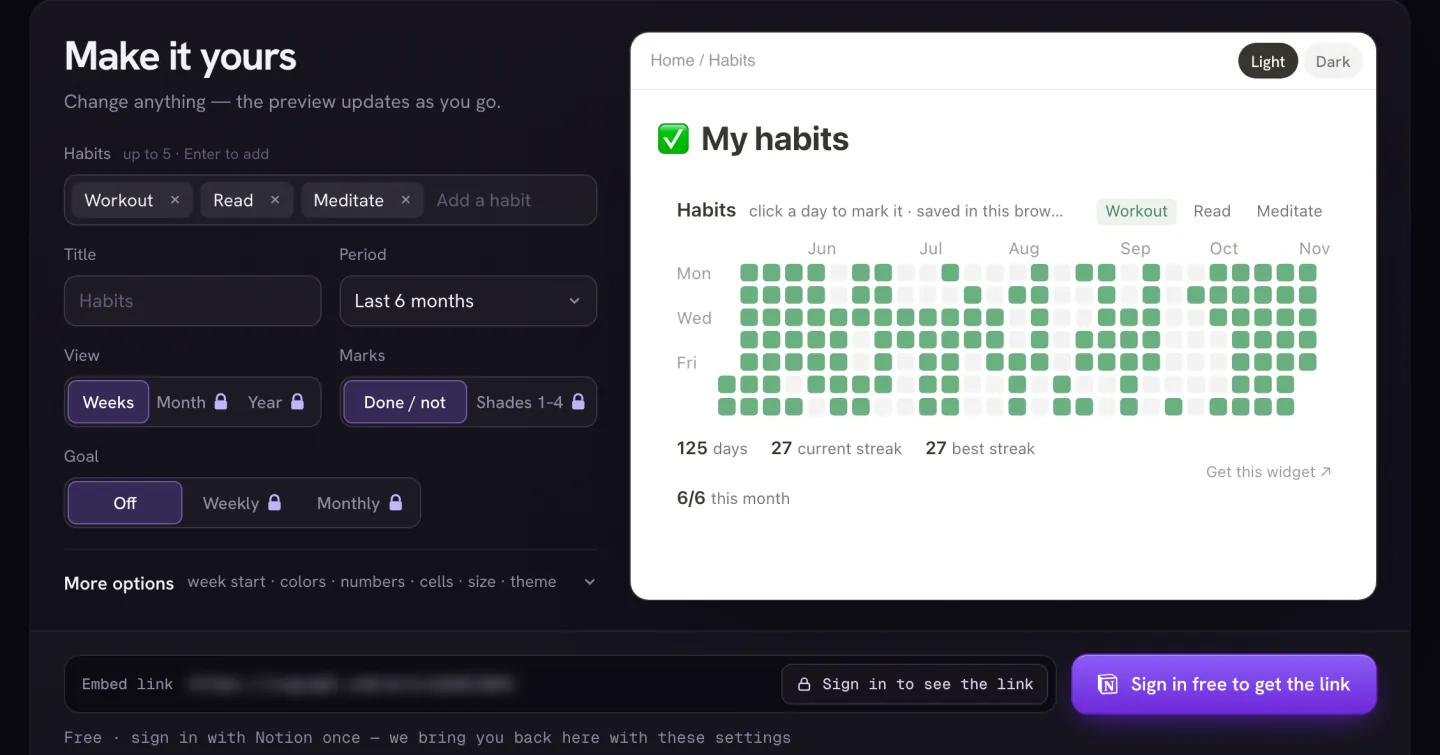
Start with one widget. A clock or a countdown takes a minute: set it up, copy the link and paste it into your dashboard with /embed. Free with a sign-in, nothing connects to your workspace.
Browse Notion widgetsNotion 3.6 added one more option in July 2026: the HTML block. On plans with Notion AI, the agent can build a small interactive tool in it, such as a calculator, and you can also upload your own .html file. It runs in a sandbox with no internet and no access to your pages, and it starts over when the page reloads. That’s fine for a calculator, but a habit tracker built that way forgets your marks. The full comparison is in our guide on embedding in Notion.
Keep it fast and easy to read
- Filter every view. Notion’s advice for the Dashboard view holds for pages too: show “this week” or “not done”, not a whole database. Large unfiltered tables are what make dashboards slow.
- One Dashboard view per page. Notion recommends against putting several on the same page.
- Count your embeds. Each widget is a small web page that loads with the dashboard. Four to six are plenty; move the rest to the pages where you use them.
- Fold away what you check weekly. A toggle heading keeps the weekly review, archives and long lists out of the way until you open them.
- Check it on your phone. Columns stack, so the left one comes first, and a long view pushes everything under it down. Our widgets resize to the width of the embed, so they stay readable in the Notion app.
Once it works, make it pleasant to look at: covers, icons, fonts, colors and widgets in matching colors are in our guide on how to make Notion aesthetic.
Start from a template or from scratch?
Notion’s template gallery has a whole dashboard category, and template makers sell many more. A template is a quick way to see layouts you wouldn’t think of. Three things to know before you duplicate one:
- It brings its own databases. If your tasks already live in Notion, you either move them into the template’s database or point its linked views at yours.
- It’s built for a screenshot. A template made to sell often has more sections than anyone uses daily. Delete what you haven’t touched after a week.
- Check its embeds. Widgets in a template point to someone else’s links. Open each one and replace it with your own, or the countdown will count down to the template maker’s date.
Building from scratch with the steps above takes about as long as cleaning up a template, and you end up knowing where every number comes from.
See what your dashboard connects to
A dashboard is a hub: it links to your main pages and databases, and they link onward. Over time, some pages end up linked from nowhere, and you only find them through search. Notion shows backlinks one page at a time, but it has no graph view of the whole workspace. IVGraph draws one: every page, mention and database relation as an interactive 3D graph, free up to 500 nodes. Pages nothing links to stand out at the edges, so you can link them from the dashboard or archive them. On paid plans from Plus, a 2D map of one section, such as a project or a wiki, can sit on the dashboard itself as an embed; the graph view page has the details.
FAQ
Does Notion have a dashboard feature?
Yes. Since March 2026, the Dashboard view arranges up to 12 database views, such as tables, boards, calendars and charts, on one screen, with filters that work across all of them. It is available on the Business and Enterprise plans. On Free and Plus, you build a dashboard as a regular page: columns, linked database views, links, buttons and embedded widgets.
Is the Notion Dashboard view free?
No. It needs a Business or Enterprise plan; Business costs $20 per member a month, billed yearly. A dashboard page works on every plan, and on the Free plan you can try one chart on it.
How do I make Notion open on my dashboard?
In the desktop app, go to Settings → Preferences and set On startup to Your default page instead of Continue where you left off; the Default page setting decides which page that is. In the browser and on your phone, add the dashboard to Favorites with the star at the top of the page, so it stays at the top of your sidebar.
How do I add a clock, calendar or timer to a Notion dashboard?
Notion has no blocks for them, so you embed a widget. Open a free widget, such as the clock, calendar, countdown or Pomodoro timer on ivgraph.com, set it up and copy its link. In Notion, type /embed, paste the link and click Embed link, then drag the edges to fit your column. With no theme set, the widget follows light and dark mode.
How many widgets can a Notion dashboard have?
A Dashboard view holds up to 12 widgets, at most 4 in a row, and each of them is a database view. On a dashboard page, Notion doesn’t list a limit for embeds, but each one loads a separate web page, so four to six keep the page quick.