 IVGraph

To embed something in Notion, copy its link, type /embed on a page and paste the link there. Notion then shows the content itself inside the page: a video you can play, a document you can scroll, a map you can move, a widget that counts down to a date. It recognizes more than 1,900 sites, and most other pages work too if their owner allows it. Below: which block to use, recipes for the services people embed most, the new HTML block, and what to do when Notion shows a bookmark, a blank box or “Failed to load” instead.
Remember that an embed is a window, not a copy. The content stays on the other site: when someone edits the Google Doc or the Figma file, your Notion page shows the new version, and when they delete it or take away your access, the embed breaks. If you need the file to stay as it is, upload it to Notion instead.
Embed, bookmark, mention or file?
A link can sit on a Notion page in four ways. Pick by what the reader should do with it.
| What appears on the page | Best for | |
|---|---|---|
| Embed | The content itself, live and interactive; you can resize it | Videos, documents, boards, maps, forms, widgets |
| Bookmark | A card with the page’s title, description and link | Articles to read later, sources, references |
| Link mention | An inline link with the site’s icon and title | Links inside a sentence |
| Uploaded file | The file, stored in Notion; PDFs, images, audio and video play on the page | Files you own and want to keep as they are |
When you paste a link on an empty line, Notion opens a small menu with these choices, including Paste as bookmark and Paste as mention. Close the menu to keep a plain link. Uploads have a size limit: 5 MB per file on the Free plan and 5 GB on paid plans.
How to embed anything in Notion
There are two ways, and both end with the same embed block.
Paste the link
- Copy the address of the page, video or file. It should start with
https://. - Paste it on an empty line of a Notion page.
- In the menu that appears, choose to embed it.
Use the /embed block
- Type
/embedand press Enter. - Paste the link and click Embed link. To show a file from your computer instead, switch to Upload.
If a site gives you an <iframe> code instead of a link, don’t paste the code. Notion wants the address, so copy only the part inside src="…".
Some content has its own block in the / menu, which helps when the general embed doesn’t recognize a link: /video, /audio, /pdf and /file for files, /tweet for posts on X, /maps for Google Maps and /drive for Google Drive. Notion also has ready blocks for Loom, Miro and CodePen.
Resize, move and replace an embed
- Resize: hover over the embed and drag the bars on its sides. Some embeds can also be made taller or shorter.
- Move: drag it by the ⋮⋮ handle on the left, also into a column next to text.
- Open the source: click Original on the embed, or View Original in its menu.
- Replace: open ⋮⋮ or ••• on the embed, choose Replace and paste a new link or pick a new file. The embed keeps its place and size.
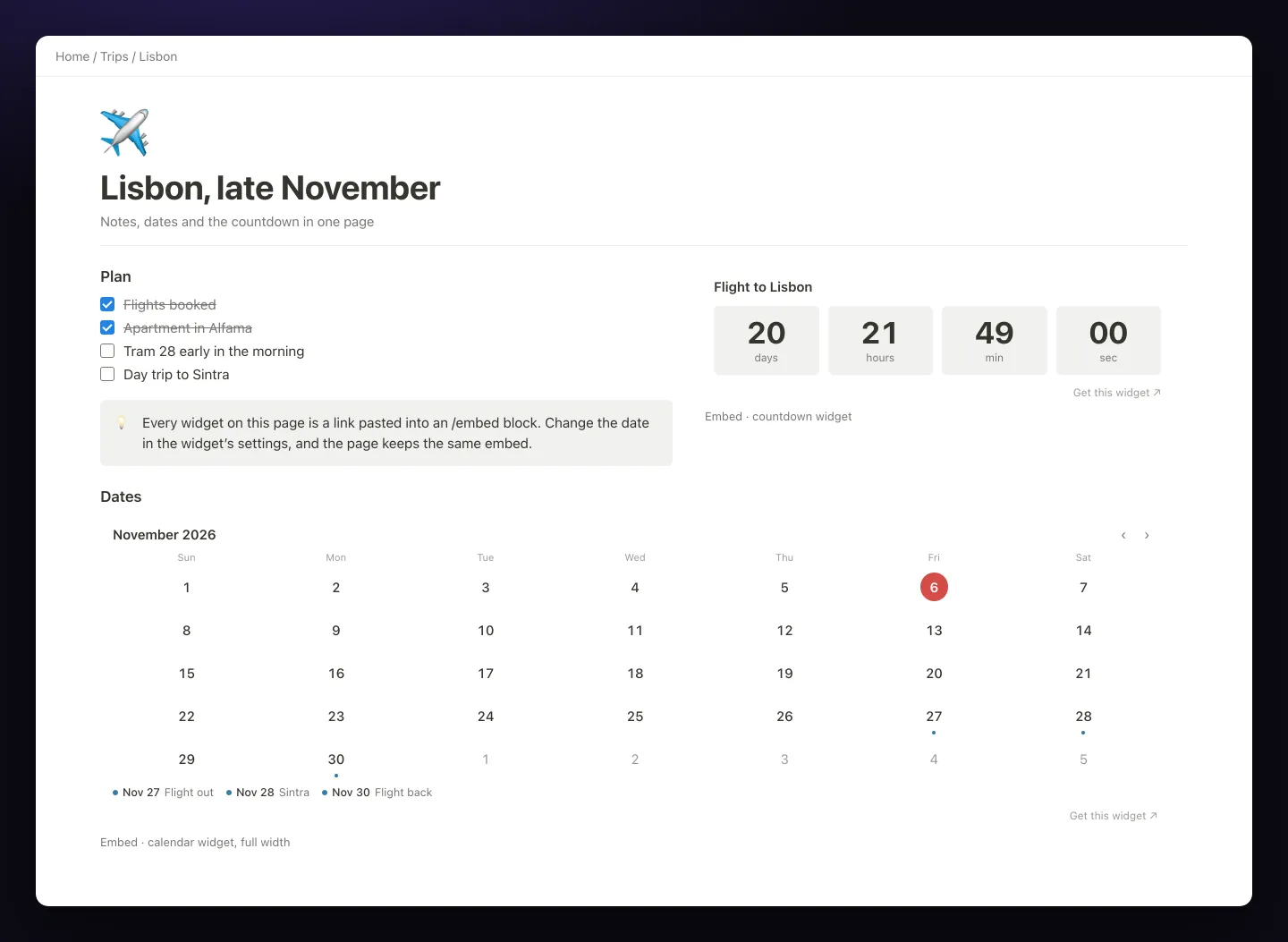
/embed.Recipes for the most common embeds
YouTube, Vimeo and Loom
Copy the video link from the address bar or the Share button and paste it on an empty line, or use /video and choose Embed link. The video plays inside the page, and you can resize it like any embed. Playlists work the same way. To keep a video next to your notes about it, put the embed and the notes in two columns.
Spotify
In Spotify, open Share → Copy link on a song, album, playlist or podcast episode, then paste the link into /embed. You get a player on the page. What it plays depends on Spotify: people logged in to Spotify in the same browser usually hear whole tracks, others may hear only previews. A focus playlist next to a Pomodoro timer is a popular study setup.
Google Docs, Sheets and Slides
Notion offers two ways, and they behave differently:
- Google Drive block: type
/drive, then paste the file’s link or click Browse Google Drive. You connect your Google account once, and several accounts are allowed. The page shows a preview of the file with a link to open it. - Embed: paste the file’s link into
/embedto show the document itself, scrollable on the page.
Either way, Google decides who sees the content. A file shared only with you shows up in your browser, where you’re signed in to Google, but Notion’s desktop and mobile apps can’t show embeds that need a login. For a sheet the whole team reads in Notion, share it as Anyone with the link or use File → Share → Publish to web and embed that link. Both make the file readable by anyone who has the link, so keep private numbers out of it.
Google Calendar
Google shows a calendar outside its own site only when the calendar is public. You copy its public address in Google Calendar’s settings and paste it with /embed; the steps, and what to check before you make a calendar public, are on our calendar widget page. If you only need the month with a few dates marked, the free calendar widget does that without making anything public.
PDFs and other files
Type /pdf and choose Upload for a file on your computer or Embed link for a PDF online. An uploaded PDF opens in a viewer on the page, and you can scroll through it without downloading. The same goes for /audio, /video and /image. Mind the upload limit on the Free plan, 5 MB per file; for a larger PDF, upload it to Google Drive or Dropbox and embed the link.
Google Maps
Type /maps and paste a Google Maps link to a place or a route. The map stays interactive, so you can zoom and drag it on the page. On a trip page, put the map next to the itinerary.
Figma, Miro, Canva, Excalidraw and Whimsical
Paste the share link of a file or board. The embed shows the live design, so changes appear without updating Notion. Viewers need access to the file: a link that only works when signed in won’t show in Notion’s apps, so share the file as viewable by link if the team works in the desktop app. Mind maps follow the same rule; our guide to mind maps in Notion compares embedding a tool with drawing one in a code block.
Forms: Tally, Typeform and Google Forms
Paste the form’s share link and people can fill it in without leaving the page. Notion also has its own forms, which save answers straight into a database. An embedded form makes sense when the answers belong in the other tool.
Posts, GIFs and code
Use /tweet for a post on X. Posts from Instagram, TikTok, Pinterest, Reddit and LinkedIn, GIFs from GIPHY, gists from GitHub and pens from CodePen are all on Notion’s list of supported sites: paste the link and embed it.
Widgets: clocks, countdowns, calendars and timers
A widget is a small web page built to be embedded: a clock, a countdown, a calendar, a timer, a habit tracker. It goes in like any other embed, with /embed and a link. Notion’s own list of embeddable apps includes widget services such as Indify, Widgetbox and Flocus.
Our free widgets work the same way. Set one up on its page, sign in once to get the link, and paste it into Notion: a clock, a countdown, a calendar, a Pomodoro timer, a progress bar or a habit tracker. Everything a widget shows comes from its link, so it never connects to your workspace. With no theme set, it has a transparent background and follows light and dark mode the way Notion does. The full list is on our Notion widgets page. On paid plans from Plus, the same /embed puts a 2D map of one section of your workspace on a page, refreshed after every sync.
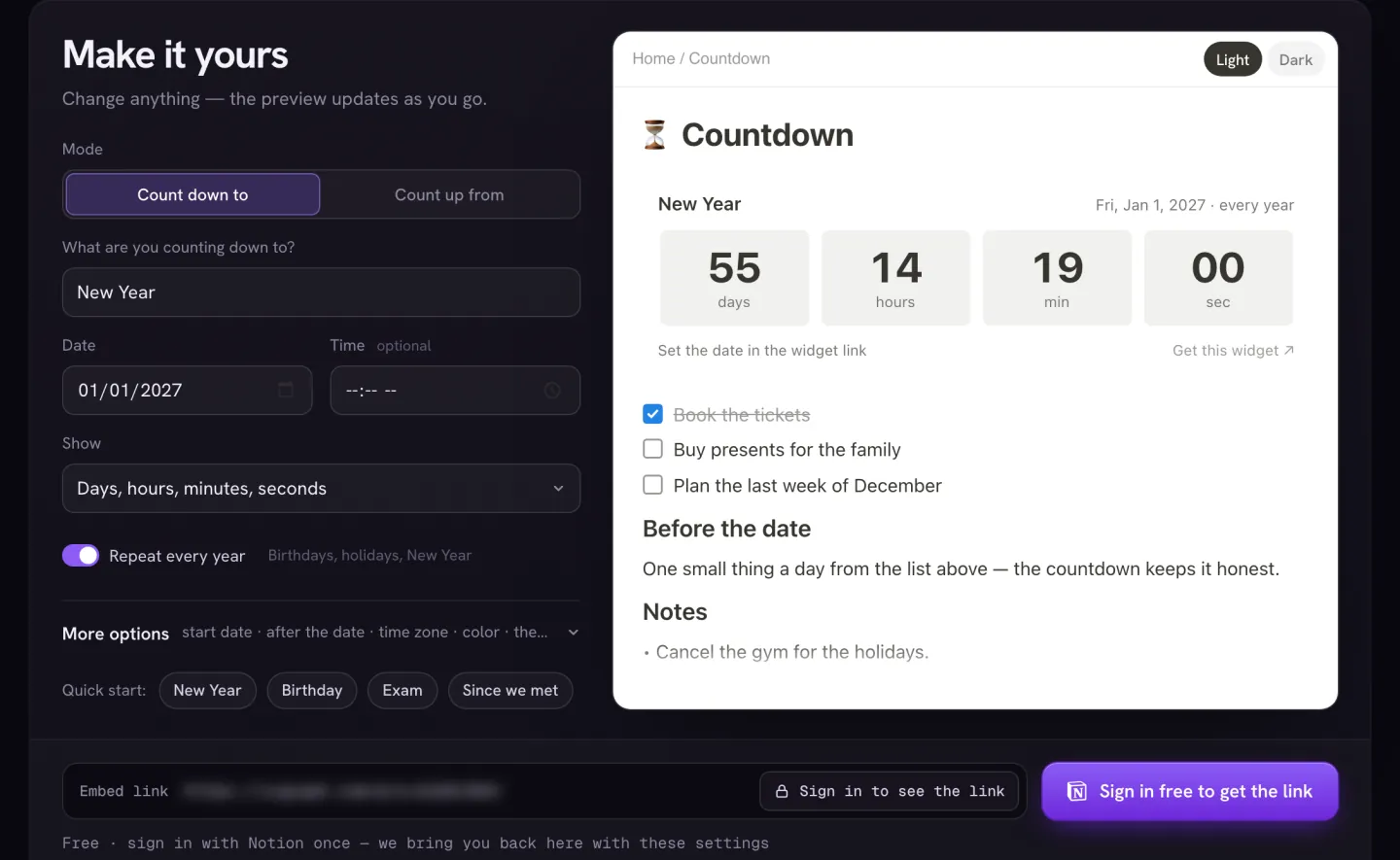
/embed appears after a free sign-in.A few tips for widgets in particular:
- Size the embed to the widget. A countdown looks best in a short embed, about 200 pixels high; a calendar needs more height, and a clock’s digits grow and shrink with the embed.
- Save it to change it later. Save a widget to My widgets in your account, and its short link stays the same: change the date, the time zone or the numbers there, and the embed in Notion updates without pasting it again.
- Don’t copy widget links from templates blindly. A widget in someone else’s template carries their settings. Make your own and use Replace to swap the link.
Need a clock, countdown or calendar on a page? Set it up, copy the link and paste it with /embed. Free with a sign-in; nothing connects to your workspace.
See how to add a widgetHTML block or embed?
Since Notion 3.6 on July 1, 2026, Notion has a second way to put interactive things on a page: the HTML block. Instead of a link to another site, it holds an HTML file and runs it inside the page, in a sandbox. You can add one in three ways:
- Upload a file. Upload a self-contained .html file, with its styles and scripts inside. Third-party tests found this the most reliable way.
- Type
/htmland paste code. The same tests found pasting less reliable than uploading. - Ask Notion AI to build one, such as an ROI calculator or a quiz, on plans that include Notion AI.
Developers can create one through the API: upload the .html file with the File Upload API and attach it to an embed block with embed.file_upload. Notion’s developer docs describe it as the same block /html creates. To set up API access first, see how to get a Notion API key.
| HTML block | Embed | |
|---|---|---|
| What it holds | An HTML file stored in Notion | A link to a page on another site |
| Internet access | None: the sandbox blocks outside requests, so fonts and images must be inside the file | Yes: the page loads live from its site |
| Remembers what you did | No: it starts over when the page reloads | Depends on the site |
| Sees your Notion pages | No | No |
| Updating it | Edit or upload the file again on every page that has it | Change it at the source; every embed follows |
| Looks | In third-party tests, a file name label and a border that can’t be removed | No label; sits flush with the page |
| On published pages | Renders, in third-party tests | Renders |
Use an HTML block for a self-contained tool: a calculator, a quiz, a small chart with fixed numbers. Use an embed for anything that needs live data or the internet, has to remember what you clicked, or should change in one place for every page that shows it.
How to embed a Notion page on your website
This is the opposite direction: a Notion page shown inside your own site.
- Open the page, select Share at the top, open the Publish tab and select Publish.
- In the same Publish tab, choose Embed this page. Turn on Show page title if you want it, then copy the code.
- Paste the code into your site’s HTML. In a website builder, that’s usually a code or HTML block.
Two things to check first. Publishing a page publishes all of its subpages too. And publishing on the web is different from sharing with Anyone on the web with link: the second opens the page to anyone who has its link, without turning it into a Notion Site. Changes you make in Notion appear on the published page by themselves.
When an embed won’t work
“Failed to load” or “refused to connect”
The site doesn’t allow other sites to show its pages, and Notion can’t change that. Many services offer a separate embed or share link for exactly this case, so look for an Embed or Share option on the site. Check the / menu for a dedicated block too. If neither exists, use a bookmark.
You get a bookmark or a link, not an embed
Notion didn’t recognize the link as embeddable when you pasted it. Type /embed and paste it there instead. Make sure you pasted an address that starts with https://, not an <iframe> code, and not a shortened link that redirects somewhere else.
A blank, cropped or tiny embed
Drag the sides and the bottom of the embed to make it bigger, or turn on Full width in the page’s ••• menu. A blank box often means the content needs a login you don’t have in that app or browser. Reload the page once: an embed loads from the other site every time you open the page.
It works in the browser but not in the app
Notion’s help says it outright: embeds that need a login to an external site don’t work in the desktop or mobile apps. Your browser has your Google or Figma login; the Notion app doesn’t. Share the content by link, publish it, or open the page in a browser.
YouTube shows “Error 153”
Error 153, a video player configuration error, usually means YouTube couldn’t tell which site is showing the video. Privacy extensions and strict browser settings that strip this information are the common cause. Allow Notion in the extension, try another browser, or open the video on YouTube.
It looks wrong on a phone
On a phone, columns stack: an embed in the right column moves under the left one. Wide embeds such as spreadsheets get hard to read, so give them a full-width spot or a link next to them for the phone.
What an embed shares
- With the other service: Notion shows content from the sites it recognizes through a service called Iframely, and its help notes that Iframely and the embedded app may receive the IP addresses of people who view the content. The embedded site learns that someone opened it, as on any website.
- With people who see your page: anyone who can open the Notion page sees the embed, as far as the source lets them. A public calendar or a sheet shared by link is readable by anyone who has its address, inside Notion or not.
- With our widgets: the clock, countdown and other free widgets share nothing from your workspace. They show only what is in their link and never connect to Notion; the habit tracker keeps your marks in your browser. The graph view map, on paid plans, shows the titles of pages and databases in the section you pick and the links between them, never page contents.
Before you embed something private on a page you share, open the page in a private browser window and look at it the way a guest would.
Embeds are also the building blocks of a good home page. To combine them with linked views, buttons and charts, see how to build a Notion dashboard. To make the page look good, too, read how to make Notion aesthetic.
FAQ
How do I embed a website in Notion?
Copy the page’s address, type /embed on a Notion page, press Enter, paste the address and click Embed link. Drag the edges of the embed to resize it. If Notion shows “Failed to load”, the website doesn’t allow other sites to show it; save it as a bookmark instead.
Why does my Notion embed say “Failed to load”?
The website forbids being shown inside other sites, and Notion can’t override that. Look for the site’s own embed or share link, which is often a different address, or check the / menu for a dedicated block. If there is none, use a bookmark or a plain link.
Can I embed HTML or JavaScript code in Notion?
Not in an embed block: it takes a link, not code. Since July 2026, Notion’s HTML block runs HTML, CSS and JavaScript from an .html file you upload, or from code Notion AI writes, in a sandbox without internet access. For code that needs live data, host it as a web page and embed its link.
Can I embed one Notion page in another?
Inside Notion you don’t need an embed. Use /link to page for a link with the page’s icon, a synced block to show the same content on several pages and edit it in one place, or a linked view to show a database on another page.
How do I embed a Notion page on my website?
Publish it first: Share → Publish → Publish. Then open Share → Publish again, choose Embed this page and copy the code into your website’s HTML or a code block of your site builder. Publishing a page also publishes all of its subpages, so check them first.
Do embeds work in the Notion mobile app?
Most do. Embeds that need a login to another site don’t work in Notion’s desktop or mobile apps, so share that content publicly or open the page in a browser. On a phone, columns stack, so an embed in the right column moves under the left one.