 IVGraph
A Notion API key is the token your code sends with every request to Notion’s API. In 2026 there are three kinds: a personal access token that acts as you, an internal connection token for team automations, and OAuth for apps that other people install. Below: how to create each one, give it access to your pages, find the page, database and data source IDs your requests need, and fix the errors almost everyone hits on the first try.
secret_ still work.Which Notion API key do you need?
Notion’s developer docs list three ways to authenticate. They differ in whose permissions the token carries, what it can see and who is allowed to create it.
| Personal access token | Internal connection | Public (OAuth) | |
|---|---|---|---|
| Acts as | You | Its own bot user | Each user who connects it |
| Can reach | Everything you can open in one workspace | Only pages and databases shared with it | The pages each user picks when signing in |
| Who creates it | Full members, if the plan’s policy allows; owners always | Workspace owners | Its developer; each user approves access |
| Use it for | Your scripts, CLI work, testing, tools you trust | Team automations, syncs, internal dashboards | Apps other people install |
A quick way to choose:
- A script, notebook or tool only you use: a personal access token. Nothing to share, working in two minutes.
- An automation the team relies on: an internal connection. It keeps working when the person who set it up leaves, and it sees only the pages you share with it.
- An app other people install: a public connection with OAuth. Never ask your users to paste a token.
- Claude, ChatGPT, Cursor or another AI app: usually no key at all. Notion’s hosted MCP server signs you in with OAuth; our Notion MCP guide covers the setup.
Option 1: create a personal access token
A personal access token (PAT) acts as you, with your workspace membership and page permissions. Notion’s own API quickstart starts with one, because there is nothing to set up besides the token.
- Turn on Developer Mode. In Notion, open Settings, search for Developer Mode and switch it on. It’s a local setting: the browser and the desktop app each need it turned on, and it isn’t available on mobile.
- Open the token list. A developer section appears in the sidebar. Open Personal access tokens and click New token. The direct link is notion.so/developers/tokens.
- Name it and set its scope. Pick the Notion API capability (add Workers only if you deploy Notion Workers) and an expiration: 7, 30, 90 or 180 days, or 1 year, the default. If a workspace picker appears, choose the workspace: a token belongs to one workspace.
- Click Create token and copy the value right away. Notion shows it once and never again, not even to admins. Put it in a password manager or your project’s secret store.
New tokens start with ntn_. Notion switched from secret_ on September 25, 2024, and older tokens keep working. Don’t check the prefix in your code, though: Notion says the format may change and asks developers to treat tokens as opaque strings.
Can’t create a token?
Guests and restricted members can’t create PATs at all. For everyone else, the plan sets who may create one with Notion API access:
| Plan | Who can create PATs by default | Can admins change it? |
|---|---|---|
| Free | Workspace owners only | No |
| Plus | All workspace members | No |
| Business | Workspace owners only | Yes: owners only, or all members |
| Enterprise | Workspace owners and selected groups | Yes: owners only, owners and selected groups, or all members |
On Business and Enterprise, ask a workspace owner to allow it under Settings → Connections. If an admin later narrows the policy, tokens you already have stop working and return unauthorized.
What a PAT can reach
Everything you can open in that workspace: pages, databases, comments and files. Pages don’t need to be shared with it. That is what makes PATs quick, and also what makes a leaked PAT expensive. Notion’s docs describe no read-only PAT: the Notion API capability reads, creates and updates. If a job only needs to read a few pages, an internal connection with only Read content is the safer key. When you lose access to a page or leave the workspace, the token loses it too.
Option 2: create an internal connection token
An internal connection is a bot user that belongs to one workspace. Use it for automations the team depends on, or for any tool that should see a few pages rather than everything you can open. Older guides call it an “internal integration”, and its token the “internal integration secret” or “integration token”.
- Check that you’re a workspace owner. Only owners can create connections. If you aren’t one, ask an owner, or create a free personal workspace to experiment in, as Notion’s FAQ suggests.
- Create the connection. In the developer section of the sidebar, or at notion.so/developers, open Internal connections, click Create a new connection, enter a name and choose the workspace. A connection can’t move to another workspace later; you’d create a new one there.
- Copy the API token. Open the connection’s Configuration tab and copy the API token. Owners can also reach it from Settings → Connections: the ••• menu next to the connection has an option to retrieve the token.
- Set capabilities on the same tab (the list is below).
- Give it pages. A new connection sees nothing, and every request fails until you share something. In the Content access tab, click Edit access and select pages and databases. Or open a page in Notion, click ••• in the top-right corner, find Connections, choose Add connection and search for yours. Sharing a page also shares its child pages.
Capabilities limit what the token can do, even on pages it can see. Notion’s docs recommend asking for the minimum:
- Read content, Update content, Insert content, in any combination. An export needs only Read content. A form that adds rows needs only Insert content. A script that sets a status needs only Update content.
- Read comments, Insert comments.
- User information: none, without email addresses, or with email addresses.
Because the connection is its own user, its access doesn’t depend on people. If the teammate who shared a page leaves the workspace, the connection keeps that page. Every workspace owner can see all internal connections, including ones that others created.
Option 3: OAuth for apps other people use
If you’re building a product, don’t ask users to paste tokens. Create a public connection instead: each user signs in through Notion’s OAuth window and picks the pages your app may see. Exchange the OAuth code for a token on a server you control. The client secret must never reach a browser, and Notion’s OAuth token endpoints are deliberately closed to browser code. IVGraph connects this way: you choose pages in Notion’s window and never handle a key.
Test the key with one request
Keep the token in an environment variable rather than in your code. On macOS or Linux:
export NOTION_API_KEY="ntn_…"In Windows PowerShell it’s $env:NOTION_API_KEY = "ntn_…". Then ask Notion who the token belongs to:
curl https://api.notion.com/v1/users/me \
  -H "Authorization: Bearer $NOTION_API_KEY" \
  -H "Notion-Version: 2026-03-11"
A working key returns a user of type bot; for a personal access token, its owner is you. Next, see what the key can reach. Search without a query returns every page or data source the token can access. This filter keeps only the data sources of your databases, each with its own ID and its parent database’s ID:
curl -X POST https://api.notion.com/v1/search \
  -H "Authorization: Bearer $NOTION_API_KEY" \
  -H "Notion-Version: 2026-03-11" \
  -H "Content-Type: application/json" \
  -d '{"filter": {"property": "object", "value": "data_source"}}'
Every request needs the Notion-Version header; 2026-03-11 is the latest version. In JavaScript, the official SDK takes the token once and retries rate-limited requests for you. Its current release sends 2025-09-03 by default, so set the version explicitly:
import { Client } from "@notionhq/client";

const notion = new Client({
  auth: process.env.NOTION_API_KEY,
  notionVersion: "2026-03-11",
});

const me = await notion.users.me({});
console.log(me.type, me.name);
Where to find a page, database or block ID
Every page, database and block in Notion has an ID: a UUID of 32 hexadecimal characters. Links show it without dashes, and the API accepts it with or without them. With dashes it’s grouped 8-4-4-4-12, so 1429989fe8ac4effbc8f57f56486db54 becomes 1429989f-e8ac-4eff-bc8f-57f56486db54.
The quickest way: Developer Mode
With Developer Mode on, a developer bar at the bottom of Notion shows the ID of the page, block, database or data source you’re looking at. Right-click a block or a database and open the Developer section to copy an ID directly. Like the setting itself, this works in the browser and the desktop app, not on mobile.
From a link
Copy a page’s link with Share → Copy link, or a block’s link from its ⋮⋮ menu with Copy link to block. Each kind of link keeps the ID in a fixed place:
Page
https://www.notion.so/acme/Launch-plan-1429989fe8ac4effbc8f57f56486db54

Database (full-page view)
https://www.notion.so/acme/248104cd477e80fdb757e945d38000bd?v=8f1c2a7e3b5d4c6e9a0b1c2d3e4f5a6b

Block
https://www.notion.so/acme/Launch-plan-1429989fe8ac4effbc8f57f56486db54#5c7d2e9a1b3f4c8d9e0f1a2b3c4d5e6f| In the link | What it is | Where you use it |
|---|---|---|
| The last 32 characters, after the page title | Page ID | /v1/pages/{page_id}; also the block ID of the page’s content |
The 32 characters before ?v= | Database ID | /v1/databases/{database_id} |
The value after ?v= | View ID | View endpoints only; never a database ID |
The value after p=, when a row is open in a side peek | That row’s page ID | /v1/pages/{page_id} |
The 32 characters after # | Block ID | /v1/blocks/{block_id} |
Since June 2026, page links in API responses use another form, https://app.notion.com/p/…. The ID is still the last 32 characters, and older notion.so links keep working.
Two cases trip people up:
- Inline databases. An inline database lives inside a page, so the address bar shows the page’s ID. Open the database as a full page first, then copy the link.
- Linked views. If a database’s view menu offers Open source database, you’re looking at a linked view. The API can’t read linked databases: open the source, use its ID and share the source with your connection.
Inside a database, a formula property with id() shows each row’s page ID without dashes, and id(prop("Project").first()) gives the ID of a related page. That helps when an automation tool asks you for row IDs.
Have a link, need the ID? Paste it into our free Notion ID finder. It pulls out the page, database, view and block IDs with or without dashes and writes a test request for you. It runs in your browser and never asks for your key.
Open the Notion ID finderThe data source ID, the one that isn’t in the link
Since API version 2025-09-03, a database is a container for one or more data sources. The data source holds the properties and the rows, so querying rows and creating pages in a database go through endpoints under /v1/data_sources/. Those take a data source ID, not the database ID from the link. Three ways to get it:
- In Notion: open the database’s settings menu, go to Manage data sources and click Copy data source ID. With Developer Mode on, right-clicking the database works too.
- From the API: retrieve the database and read its
data_sourceslist. - From search: the
data_sourcefilter shown above.
curl https://api.notion.com/v1/databases/248104cd477e80fdb757e945d38000bd \
  -H "Authorization: Bearer $NOTION_API_KEY" \
  -H "Notion-Version: 2026-03-11"

# the part of the response you need
{
  "object": "database",
  "id": "248104cd-477e-80fd-b757-e945d38000bd",
  "data_sources": [
    { "id": "248104cd-477e-80af-bc30-000bd28de8f9", "name": "Grocery list" }
  ]
}
Then query the rows with POST /v1/data_sources/248104cd-477e-80af-bc30-000bd28de8f9/query. Most databases have a single data source today, but don’t build on that. Notion’s upgrade guide warns that once someone adds a second source to a database, connections still on an older API version stop finding it in search, and their reads, writes and queries on it fail.
In code
The official JavaScript SDK does this parsing for you: extractPageId, extractDatabaseId and extractBlockId arrived in September 2025. They return the ID with dashes and prefer the ID in the path over query parameters, so a database link doesn’t hand you the view ID by mistake.
import { extractDatabaseId } from "@notionhq/client";

extractDatabaseId("https://www.notion.so/acme/248104cd477e80fdb757e945d38000bd?v=8f1c2a7e3b5d4c6e9a0b1c2d3e4f5a6b");
// "248104cd-477e-80fd-b757-e945d38000bd"
Fix the errors you’ll hit first
Error responses carry an HTTP status, a code and a readable message. These six cover nearly every first-day problem:
| Error and message | Usual cause | Fix |
|---|---|---|
401 unauthorizedAPI token is invalid. | A typo or a missing Bearer; an expired, revoked or refreshed token; a workspace that stopped allowing your PATs | Copy the token again and send it in the Authorization header as Bearer <token>. Create a new PAT if the old one expired |
404 object_not_foundCould not find database… | The page isn’t shared with the connection; a view ID instead of the database ID; a linked database; a page in another workspace | Share the page or its parent with the connection; take the ID before ?v=; use the source database |
403 restricted_resourceAPI token does not have… | A missing capability, such as editing with only Read content, or a Free workspace over its block limit | Add the capability on the Configuration tab; the message names the cause |
400 validation_errorbody failed validation… | A malformed ID, a wrong property name or type, or a value over a size limit | Read the message: it names the field |
400 missing_versionNotion-Version header… | No Notion-Version header | Add Notion-Version: 2026-03-11 |
429 rate_limitedYou have been rate limited… | Too many requests | Wait for Retry-After; the limits are below |
Three more problems that don’t look like errors:
- Relation properties come back empty. Share the related database with the connection too. Otherwise the properties based on that relation are left out of the response. How relations work is explained in our Notion relations guide.
- Search returns nothing. A token only finds what it can access. For a connection, that’s the pages shared with it and their children.
- A request that worked yesterday fails today. A PAT may have expired, an admin may have revoked it, or someone refreshed the connection’s token. For internal and public connections, the Health tab in the developer tools lists the last 24 hours of requests with their error codes and rate-limit hits.
Notion API rate limits in 2026
Notion changed its limits on September 9, 2026. Older answers describe one flat average of three requests per second with waits of up to 15 minutes. Now the limit depends on the plan and is counted per minute. Here is what Notion’s request limits page says:
| Limit | Value |
|---|---|
| Per connection, Business and Enterprise | 600 requests per minute, an average of 10 per second |
| Per connection, all other plans, Free and Plus included | 180 requests per minute, an average of 3 per second |
| Per workspace | One budget shared by all of the workspace’s connections, scaled to the plan |
| Query a data source | About 3 requests per second per connection |
| One request | Up to 1,000 blocks and 500 KB |
| Text, links, lists | 2,000 characters per text item or URL; up to 100 items per array, relation or multi-select in one request |
| One page of results | Up to 100 items (page_size); continue with start_cursor |
The per-connection budget resets every 60 seconds and can be spent in a single burst. Over a limit, Notion answers with HTTP 429, the code rate_limited and a Retry-After header in seconds. For the per-connection limit that wait never exceeds 60 seconds; the shared workspace limit can ask for longer. The field additional_data.rate_limit_reason says which limit you hit. A 529 service_overload means Notion itself is busy: treat it like a 429. Notion MCP tool calls draw from the same limits.
How to stay inside them:
- Send requests through one queue, not through parallel workers that each retry on their own.
- On 429 or 529, wait for
Retry-Afterand retry. If it happens again, back off exponentially with a little jitter, and cap the number of attempts. - Don’t retry most 400 errors: fix the request. A 429 with the reason
public_api_request_blockedwon’t clear by waiting either; contact Notion support. - Before repeating a write that returned 503, read
additional_data.retry_guidance. The change may already be saved, and repeating it would apply it twice.
Keep the key safe
Anyone who has the token can do whatever it allows. For a PAT that’s everything you can open; for a connection, every page shared with it.
- Store it outside your code: an environment variable for local work, with
.envlisted in.gitignore, and a secret manager in production. - Never put it in a web page. The Notion API accepts requests from browser code, so a token embedded in a page that others can open is usable by anyone who views its source.
- Don’t paste it into chats, support tickets or issue trackers, and that includes conversations with AI assistants.
- Use one token per tool and per environment, so revoking one doesn’t break the rest.
- Grant the minimum. For a third-party tool, an internal connection that sees only the pages you share is safer than a PAT that sees everything you can. Give experimental PATs a short expiration.
- Turn on secret scanning in your repository and CI. The
ntn_prefix exists so that scanners can recognize Notion tokens.
If a token leaks, act in this order. In Notion, open Settings → Connections → Develop or manage connections, find the connection or token, and click Refresh for an internal connection or revoke the PAT. Replace the old value everywhere it was used. Then check recent changes to your pages and databases, and look for connections you don’t recognize. Workspace admins can revoke any member’s PAT from Settings → Connections as well, although they can never see or copy the token itself.
When you don’t need an API key
- AI apps. Claude, ChatGPT, Cursor, Codex and VS Code connect to Notion’s hosted MCP server through OAuth, so there is no key to create. Our Notion MCP setup helper gives you the exact config for each app. Two exceptions: on Business and Enterprise, a workspace owner can create an MCP token for clients that can’t open a sign-in window, and the open-source, self-hosted MCP server takes an API token, although Notion no longer actively maintains it.
- Apps that use Notion sign-in. A tool that opens Notion’s window and asks you to pick pages uses a public connection, and you never see a token.
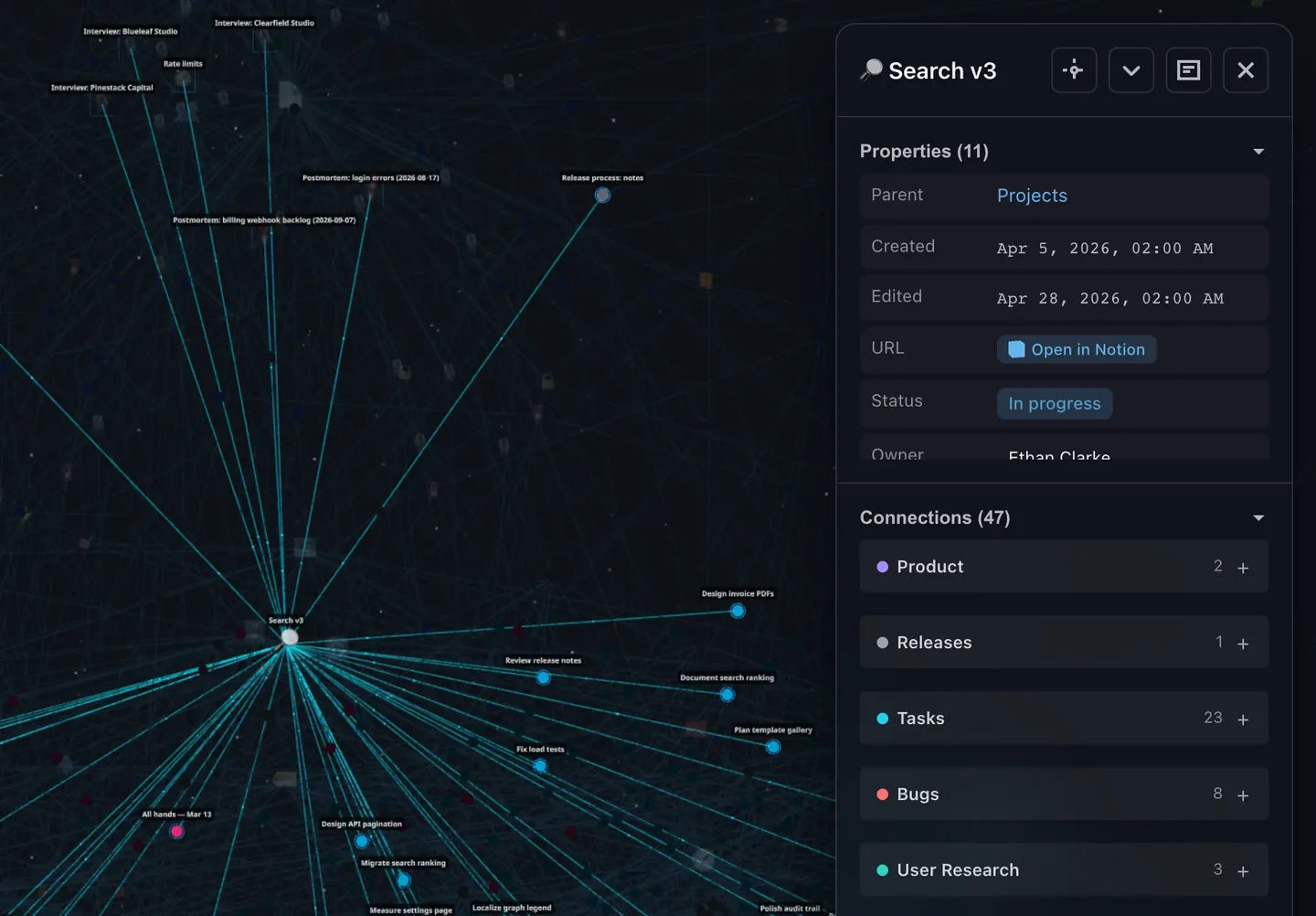
- Seeing how your workspace connects. People often collect page and database IDs to map relations by hand. IVGraph connects through Notion’s OAuth window and draws every page, mention and database relation as an interactive 3D graph. It’s free up to 500 nodes.
If an agent should read that graph, IVGraph has a read-only API for agents with its own service token on the Pro and Max plans: search, page content, neighbors and paths between pages. There’s no IVGraph MCP server yet.
FAQ
Is the Notion API free?
Notion doesn’t list a separate price for API access. Personal access tokens and connections work on every plan, Free included. The plan changes the rate limit, 180 requests per minute per connection or 600 on Business and Enterprise, and who may create personal access tokens. One catch: a Free workspace with more than one member has a lifetime limit of 1,000 blocks. Once it’s reached and a three-day grace period ends, internal connections can’t create pages or blocks; reading and editing still work.
What is the Notion API rate limit?
Since September 9, 2026, each connection gets 180 requests per minute on Free, Plus and other plans and 600 per minute on Business and Enterprise, counted in a fixed 60-second window. A separate limit is shared by all connections in a workspace, and querying a data source is limited to about 3 requests per second. Over a limit, Notion returns HTTP 429 with a Retry-After header.
Does a Notion API key expire?
Personal access tokens do: you choose 7, 30, 90 or 180 days, or 1 year, which is the default. Notion’s docs give internal connection tokens no expiry date, but you can refresh one at any time, which replaces it. An expired, revoked or replaced token returns 401 unauthorized.
What is the difference between a database ID and a data source ID?
The database ID is in the database’s link, before ?v=. Since API version 2025-09-03 a database can hold several data sources, and querying rows or creating pages needs the data source ID. Copy it in Notion with Manage data sources → Copy data source ID, or read the data_sources list that GET /v1/databases/{id} returns.