 IVGraph
A retro flip clock for Notion
Big cards that turn over every minute, the date underneath and Notion’s light and dark mode. Free — sign in to get the link. Six more looks, seconds and more cities come with Plus.
Make it yours
Pick a look — the preview updates as you go.
Flip look
Time
FreeColors
FreeYour look
Plus$5/month✓ In your plan- Retro, Board, Pastel and 3 more flip looks
- Serif or Mono font, text size S or L
- Seconds
- Up to 3 more time zones
- No “Get this widget” link
- Up to 200 saved widgets — Free keeps 3
https://ivgraph.com/w/s/a1b2c3d4/Sign in to see the link
Paste the link into Notion with /embed · the cards turn over by themselves
You’re signed in — get the link.
Add it to Notion
- 1Copy the widget link.
- 2In any Notion page type
/embed, press Enter, paste the link and click Embed link. - 3Drag the edges of the embed to resize it. The cards grow and shrink with the embed.
Change it later in My widgets
Once you sign in, the button next to the widget link saves it to My widgets. The widget gets a short link and a place in your IVGraph account: change its settings there, and the embed in Notion updates by itself — no need to paste the link again.
My widgets lists everything you saved, with views for the week.

Seven looks
The Notion look is free. The other six come with Plus — pick one to see it in the preview above.
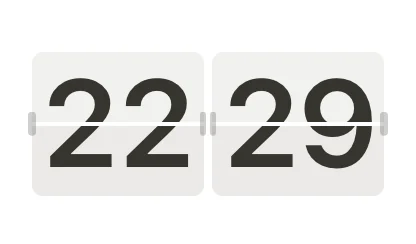
Notion Free
Soft grey cards with bold digits — quiet enough for any page.
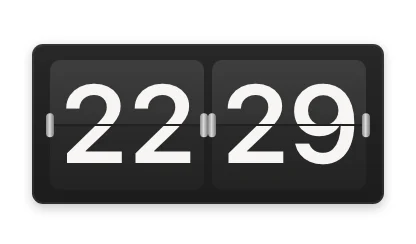
Retro Plus
Dark cards in a black case, with the weekday and date on a strip below.
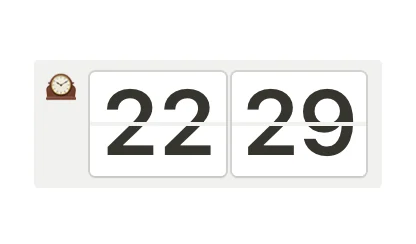
Callout Plus
The clock inside a Notion-style callout, with a clock icon and white cards.
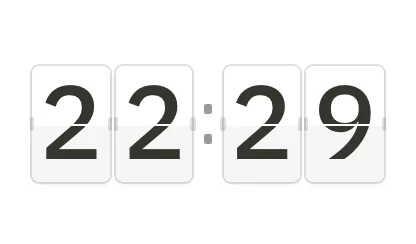
Board Plus
A card for every digit and a square colon, like a departure board; the day and date sit on small tiles.
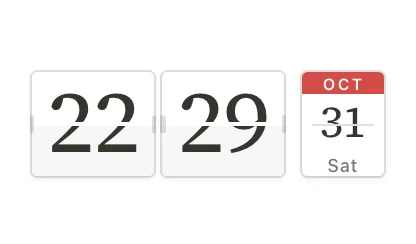
Calendar Plus
Serif digits next to a tear-off calendar sheet with the month, the day and the weekday.
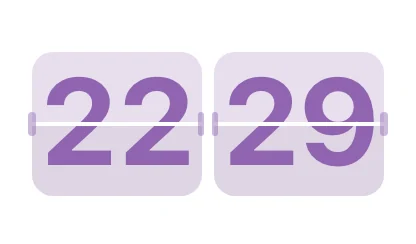
Pastel Plus
Cards in a soft Notion color — purple, or the color you pick — with the date as a grey tag.
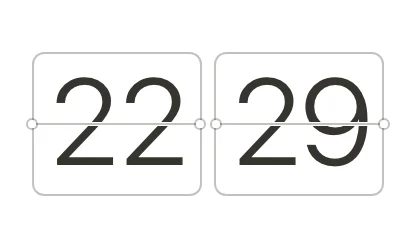
Outline Plus
Only outlines, no fill. Seconds run as a thin bar under the cards.
Ways to use it
A clock on your home page
A big flip clock at the top of your Notion home page, with the day and date under it — the first thing you see when you open Notion.
Study sessions
With Plus, seconds turn over as a third card — a focus screen next to your notes, a countdown to the exam or a Pomodoro timer.
A team in different time zones
Pick the office time zone and, with Plus, add up to three more cities under the cards: “London 13:05 · Tokyo 21:05 +1”. No mental math before a call.
FAQ
Is the flip clock free?
Yes — sign in once to get the link. The Notion look, the time zone, 12- or 24-hour time, the date, color and theme are free. Plus ($5/month) adds the other six looks, seconds, up to 3 more time zones, up to 200 saved widgets and no “Get this widget” link; Free keeps up to 3 saved widgets.
Can it show seconds?
Yes, with Plus: seconds turn over as a third card (in the Outline look — as a thin bar under the cards). Free shows hours and minutes.
Can I turn off the flip animation?
Yes. Turn on reduced motion in your device’s accessibility settings — Reduce motion on a Mac or iPhone, Animation effects off in Windows — and the cards change without turning over. The widget has no switch of its own.
Whose time does the clock show?
By default, the time of whoever opens the page: on your laptop it shows your time, for a teammate in Tokyo it shows theirs. Pick a time zone to show one city’s time for everyone, and add up to three more cities with Plus.
Does it work on the phone?
Yes. The cards resize to fit the embed, so the clock stays readable in a narrow column and in the Notion app on the phone.
Does it work with Notion’s dark mode?
Yes. By default it follows the light or dark mode of the device, like Notion does. Under Colors you can set it to Light or Dark.